
ONLY FOR A319 v5.0.1.100+
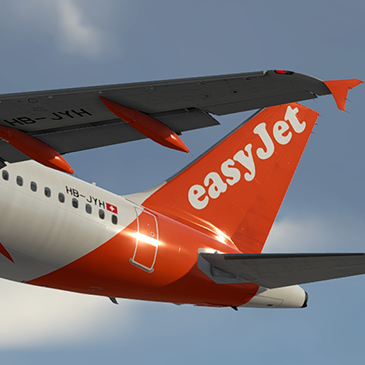
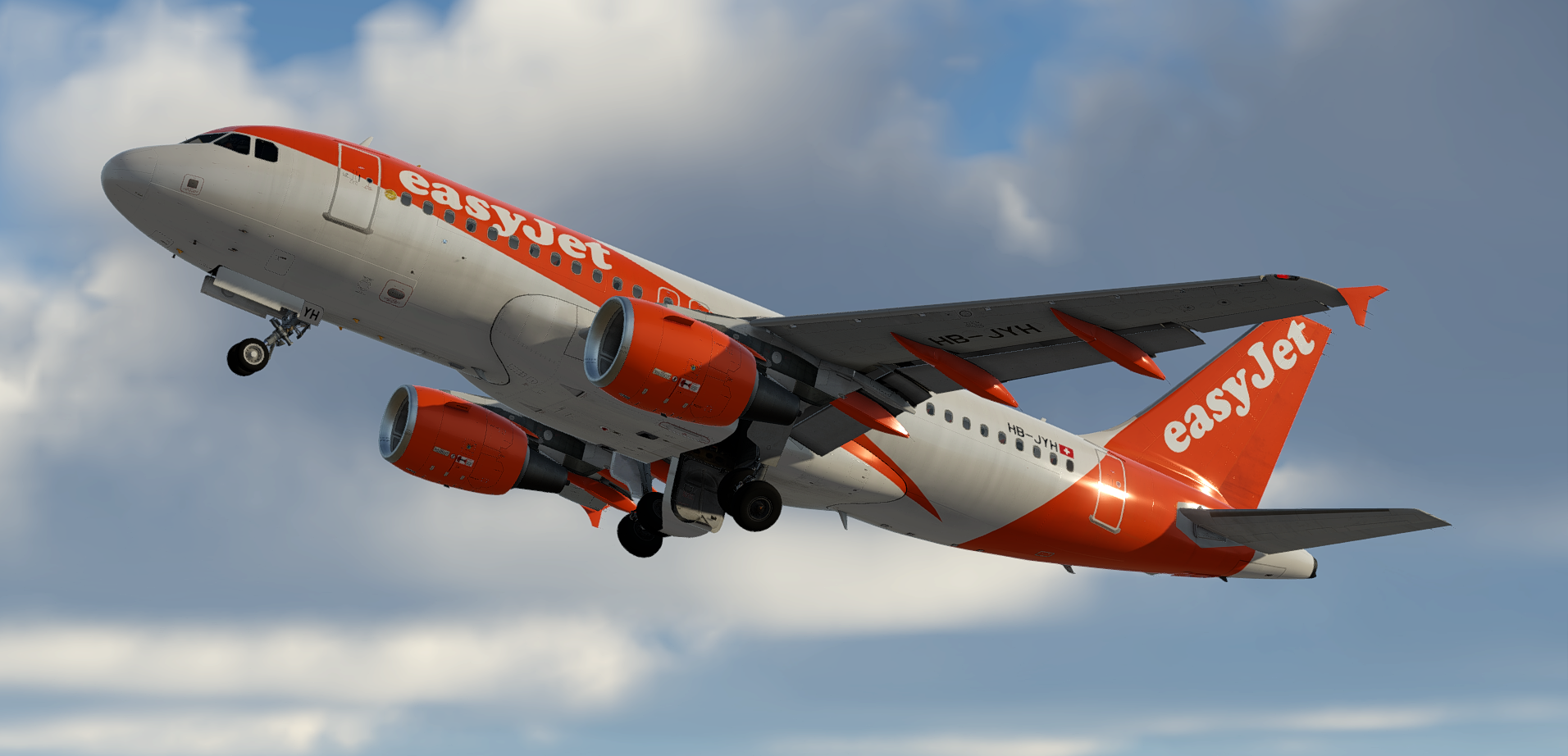
easyJet Switzerland A319-111 Fleet
Installation instructions:
- Install the common files found at https://forums.flightsimlabs.com/index.php?/files/file/2634-common-files-for-fsl-a319-v501100-custom-4k-pbr-textures/. These are ESSENTIAL for the paint to work.
- Simply drag both the 'Texture.EZS HB-Jxx' AND 'Airframe Configs' folders into your FSLabs A319 CFM simobjects folder (usually found at 'Documents\Prepar3D v4/5 Add-ons\FSLabs\SimObjects\Airplanes\FSLabs A319 CFM').
Features a complete overhaul of the default FSL A319 paint kit including:
- Custom 4K textures with accurate seam panelling, fuselage section joins and rivets.
- Custom 4K metallic maps (PBR) with baked ambient occlusion (AO) effects.
- Custom 4K normal maps for fuselage, engines, wings and tail.
- Reworked landing gear including tyres and struts with custom PBR effects.
- Enhancements to aircraft overlay textures, including PBR effects.
- Custom dirt effects.
Special thanks to @Hugo Bicho, @Daniel Du Preez and @John Tavendale for the custom 4K A319 Paintkit.
by 7x7Pilot
What's New in Version 1.0.0
Released
No changelog available for this version.
-
 7
7
-
 2
2