
Skip to content
View in the app

A better way to browse. Learn more.

Flight Sim Labs Forums

A full-screen app on your home screen with push notifications, badges and more.

To install this app on iOS and iPadOS
  1. Tap the Share icon in Safari
  2. Scroll the menu and tap Add to Home Screen.
  3. Tap Add in the top-right corner.
To install this app on Android
  1. Tap the 3-dot menu (⋮) in the top-right corner of the browser.
  2. Tap Add to Home screen or Install app.
  3. Confirm by tapping Install.

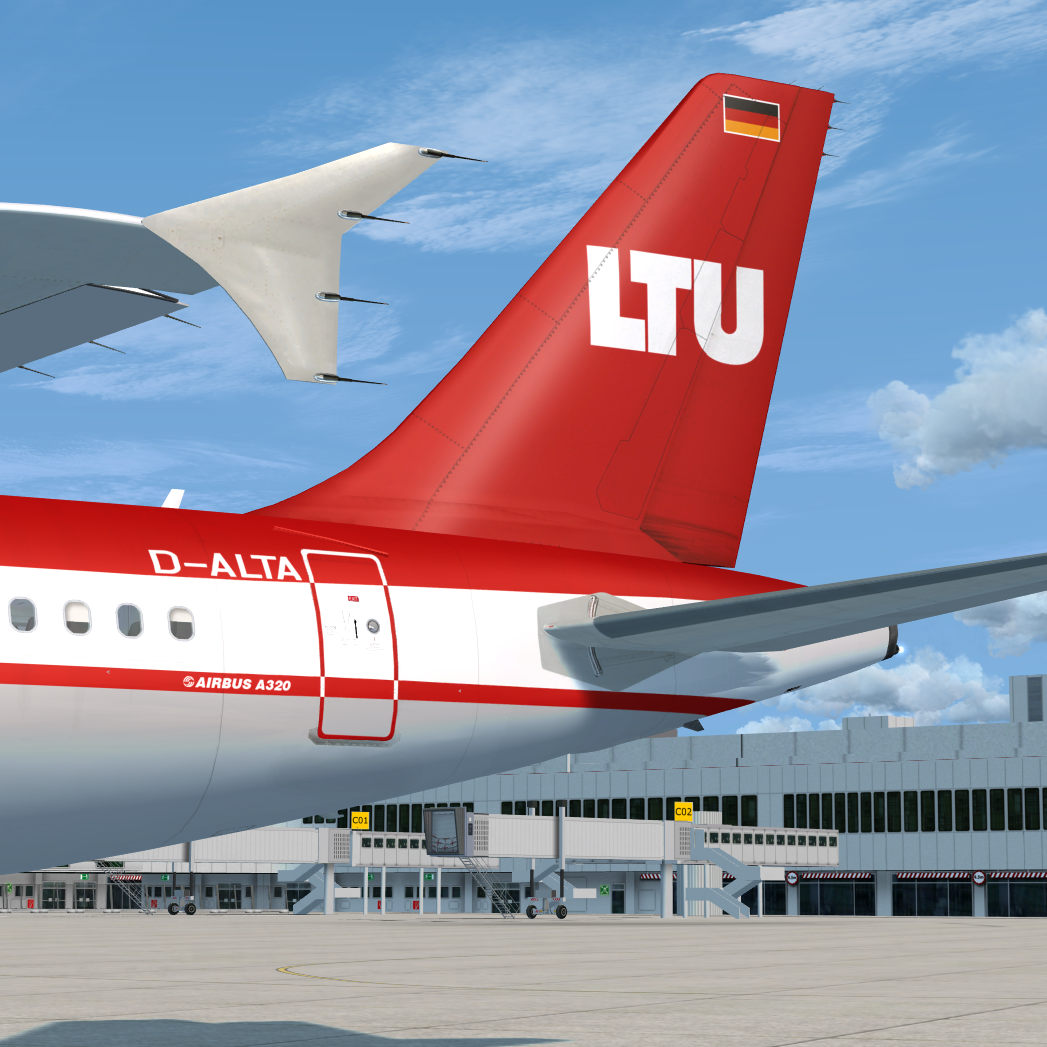
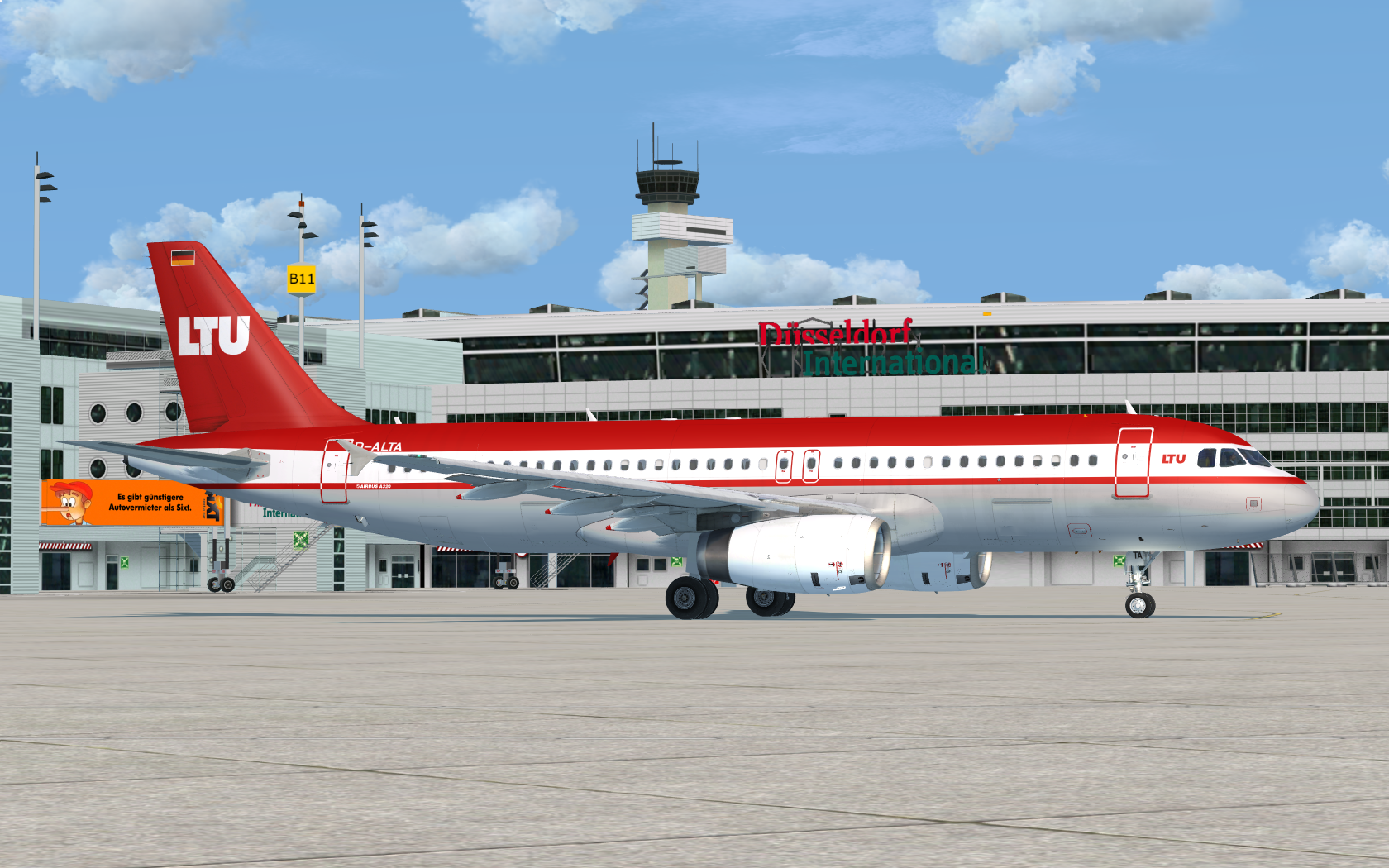
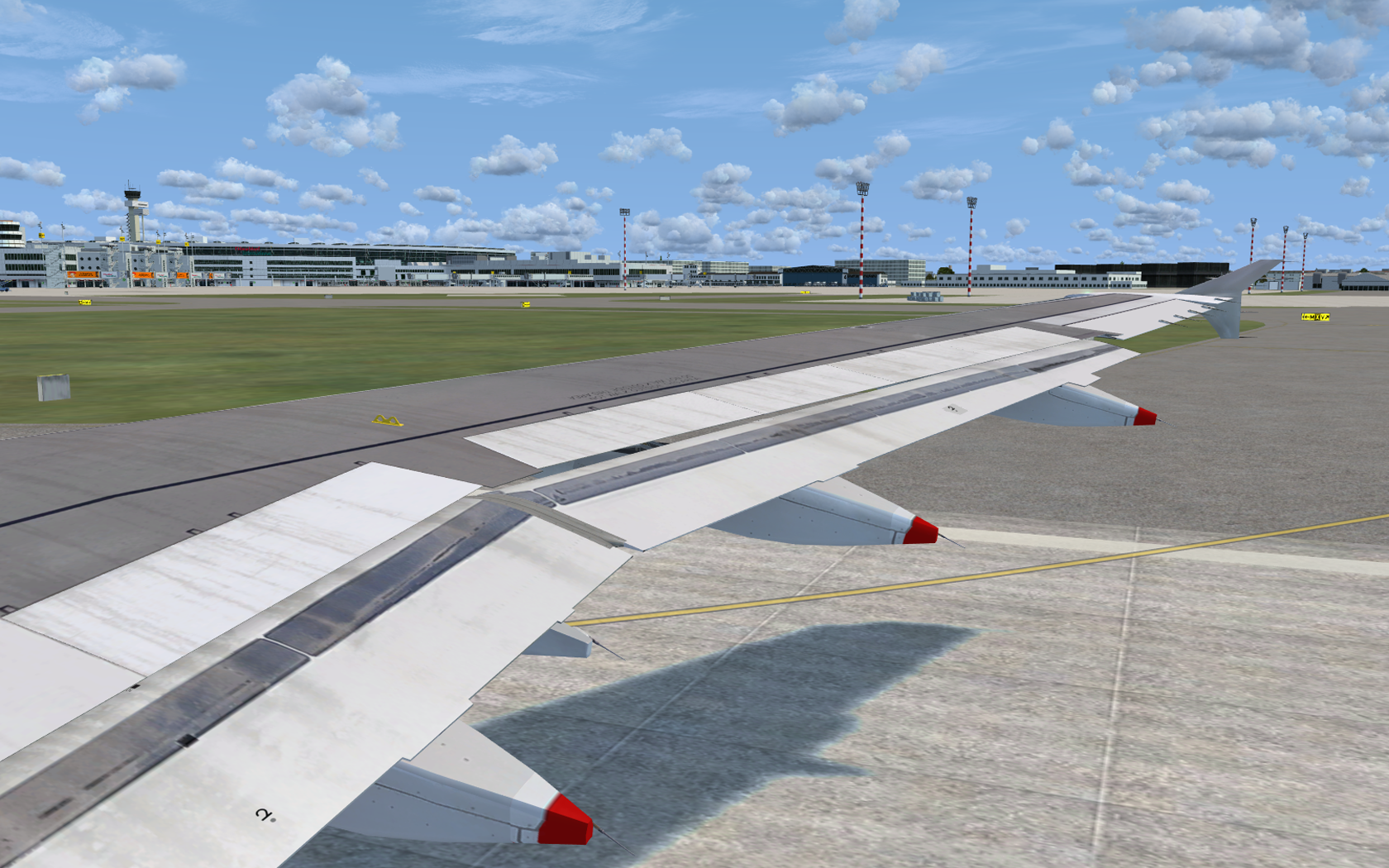
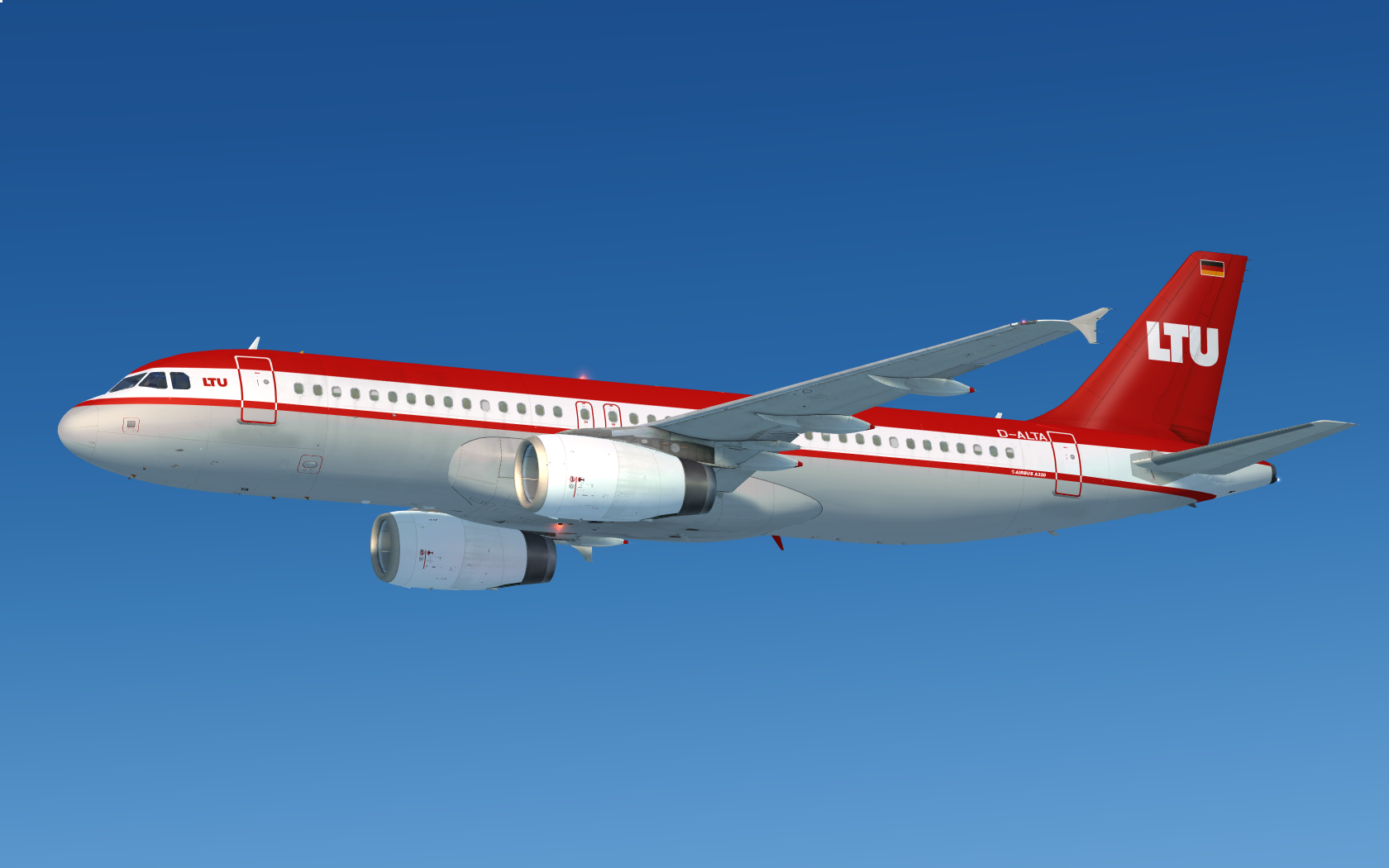
FSLabs A320-232 LTU (D-ALTA) 2.0

(5 reviews)

4 Screenshots

User Feedback

Ian Broulte

Ian Broulte

   1 of 1 member found this review helpful 1 / 1 member

Great one! What about a LTU repaint on cfm ?


@Luis Oswaldo Bethencourt

The very first and only A320 of LTU with IAE engines was D-ALTA. It had his first flight for LTU 2 years before they got more A320 but with CFM. However D-ALTA just flew 3 years for LTU (1999-2002).

Response from the author:

Thanks for your kind review. My plan is to concentrate on the A319 now. So many new possibilities. 

Luis Oswaldo Bethencourt

Luis Oswaldo Bethencourt

   1 of 2 members found this review helpful 1 / 2 members

Man , looks awesome.

There is one thing though, LTU never used IAEs but CFMs instead. Don't get me wrong, it looks stunning. Maybe you can make a  CFM livery  with the late LTU colour scheme before Air Berlin took over.. :) No worries, Kidding. Super job.

Frank Anthony Gollner

Frank Anthony Gollner

   1 of 1 member found this review helpful 1 / 1 member

Thanks dermobb, can't fly the real airline anymore, but still can thanks to you, in the virtual world!

Rafal Haczek

Rafal Haczek

   2 of 2 members found this review helpful 2 / 2 members

Simply awesome, like anything from Nils. :)
I've made a wish and here it comes in an excellent rendition.

Danke, Nils!

Jonas Dahlke

Jonas Dahlke

   2 of 2 members found this review helpful 2 / 2 members

waited for a good LTU paint :) Awesome

Account

Navigation

Search

Search

Configure browser push notifications

Chrome (Android)
  1. Tap the lock icon next to the address bar.
  2. Tap Permissions → Notifications.
  3. Adjust your preference.
Chrome (Desktop)
  1. Click the padlock icon in the address bar.
  2. Select Site settings.
  3. Find Notifications and adjust your preference.