

ACP Volume Control for FSLabs A321 (MSFS2024) - Classic ACP & DRAIMS ACP
Turn the ACP volume knobs in your FSLabs A321 NEO/CEO into real, working
volume controls for your PC - works great with a hardware ACP, and
just as well using nothing but the mouse on the virtual ACP in the
cockpit - no hardware required at all
What it does
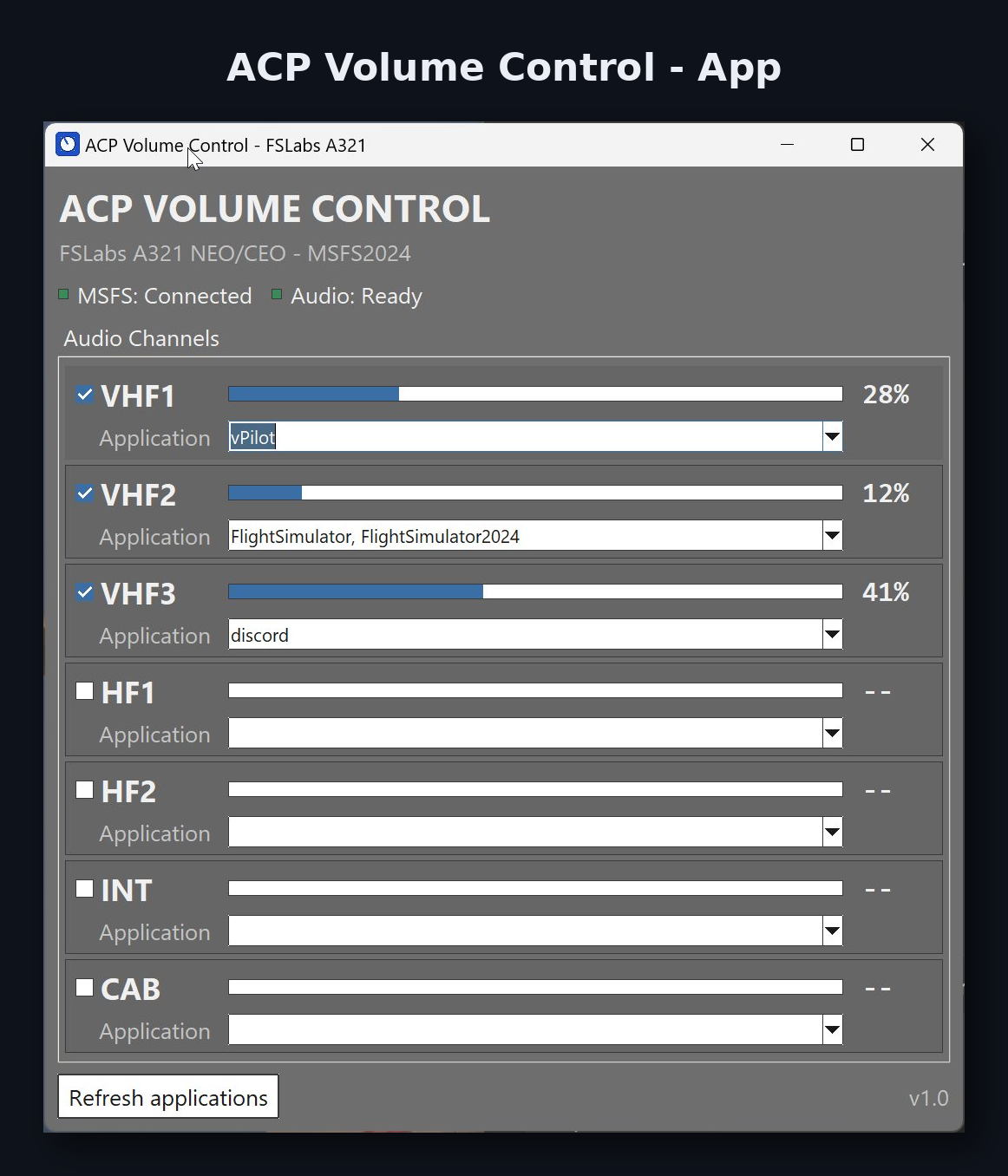
If you've ever wanted the VHF1, VHF2, and VHF3, etc... knobs on the Audio
Control Panel to actually do something useful with your Windows audio,
this is it. ACP Volume Control reads the live position of each ACP
rotary (VHF1, VHF2, VHF3, HF1, HF2, INT, CAB) directly from your FSLabs
A321 and uses it to control the Windows volume of any application you
choose - per channel.
A typical setup:
-
VHF1 -> vPilot volume
-
VHF2 -> MSFS2024 itself
-
VHF3 -> Discord (including two simultaneous instances, e.g. main +
-
PTB)
-
etc...
But you're not limited to that - assign any of the 7 channels to any
running application, or even multiple applications at once.
Key features
Works with or without a hardware ACP - use a physical panel for
the full tactile experience, or simply click and drag the ACP knobs
with your mouse directly in the virtual cockpit. Both work smoothly,
no hardware purchase required. Tested with a Skalarki ACP; other
hardware ACPs such as WinCtrl or Rowsfire should work just as
well, since they all drive the same underlying FSLabs variables, but
haven't been tested personally - feedback is welcome.
Works with both the classic FSLabs ACP and the new DRAIMS ACP panel -
no setup difference, it just works.
Live volume bars in the app window so you can see exactly what each
knob is doing.
A simple dropdown lists every currently running application with
audio, so you don't need to remember exact process names.
Runs quietly in the system tray - open it only when you need to change
something.
Optional automatic start/stop together with the FSLabs Hardware
Interface, so it's only running when you actually need it.
Fully standalone executable
Requirements
-
MSFS2024
-
FSLabs A321 NEO/CEO with either the classic ACP or the new DRAIMS
ACP panel - both are fully supported, no extra configuration needed
-
A hardware ACP is not required - mouse control on the virtual
cockpit ACP works just as well
-
The free MobiFlight WASM module (one-time setup, see the included
guide - takes about two minutes)
Installation
Download and run the installer, follow the short setup wizard, and
install the MobiFlight WASM module once (also explained step by step in
the included setup guide). That's it - load the FSLabs A321, open the
app, and assign your applications to the channels you want to control.
Support
Feedback, bug reports, and feature suggestions are always welcome
There are no reviews to display.