





Greetings fellow pilots,
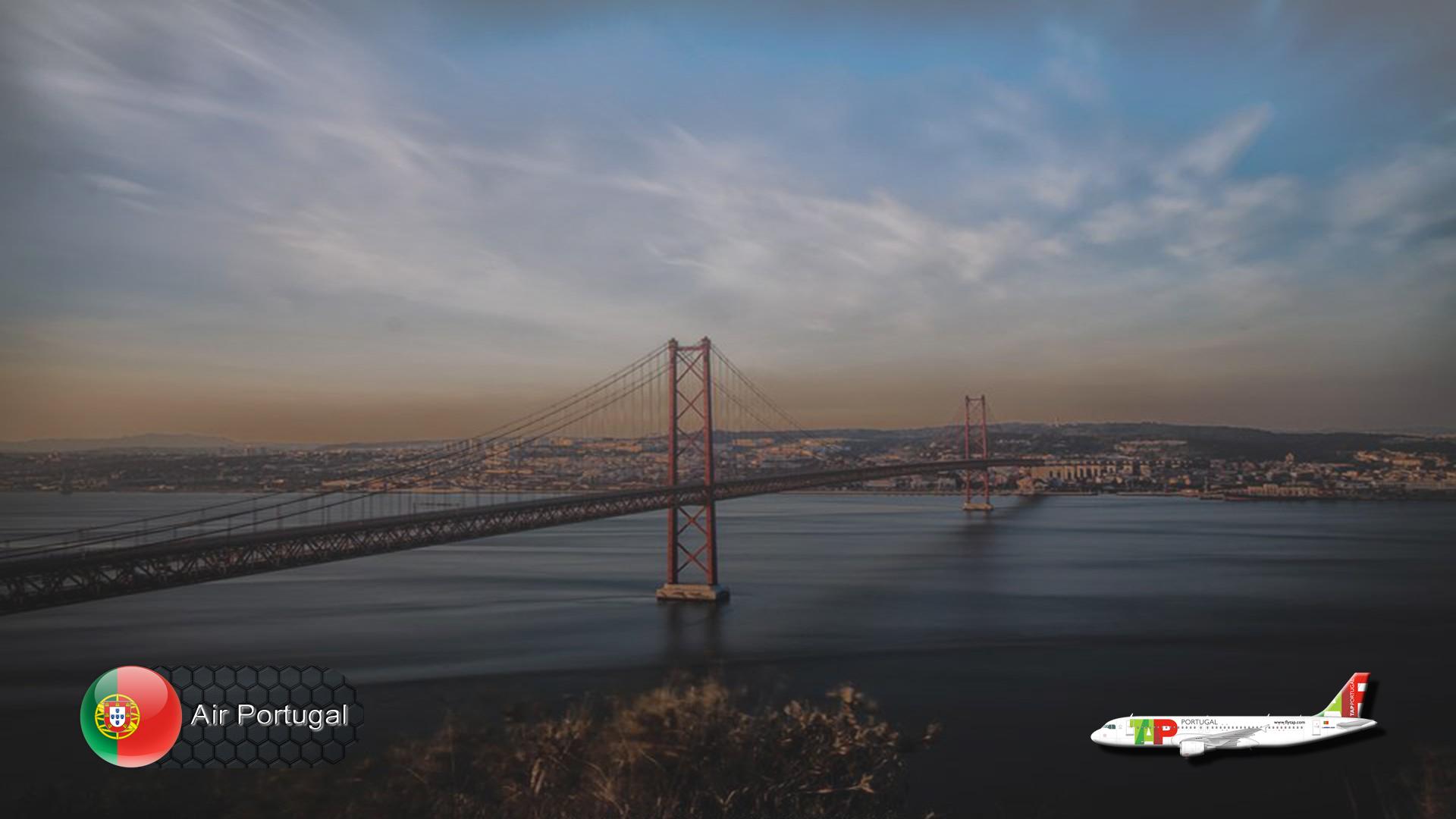
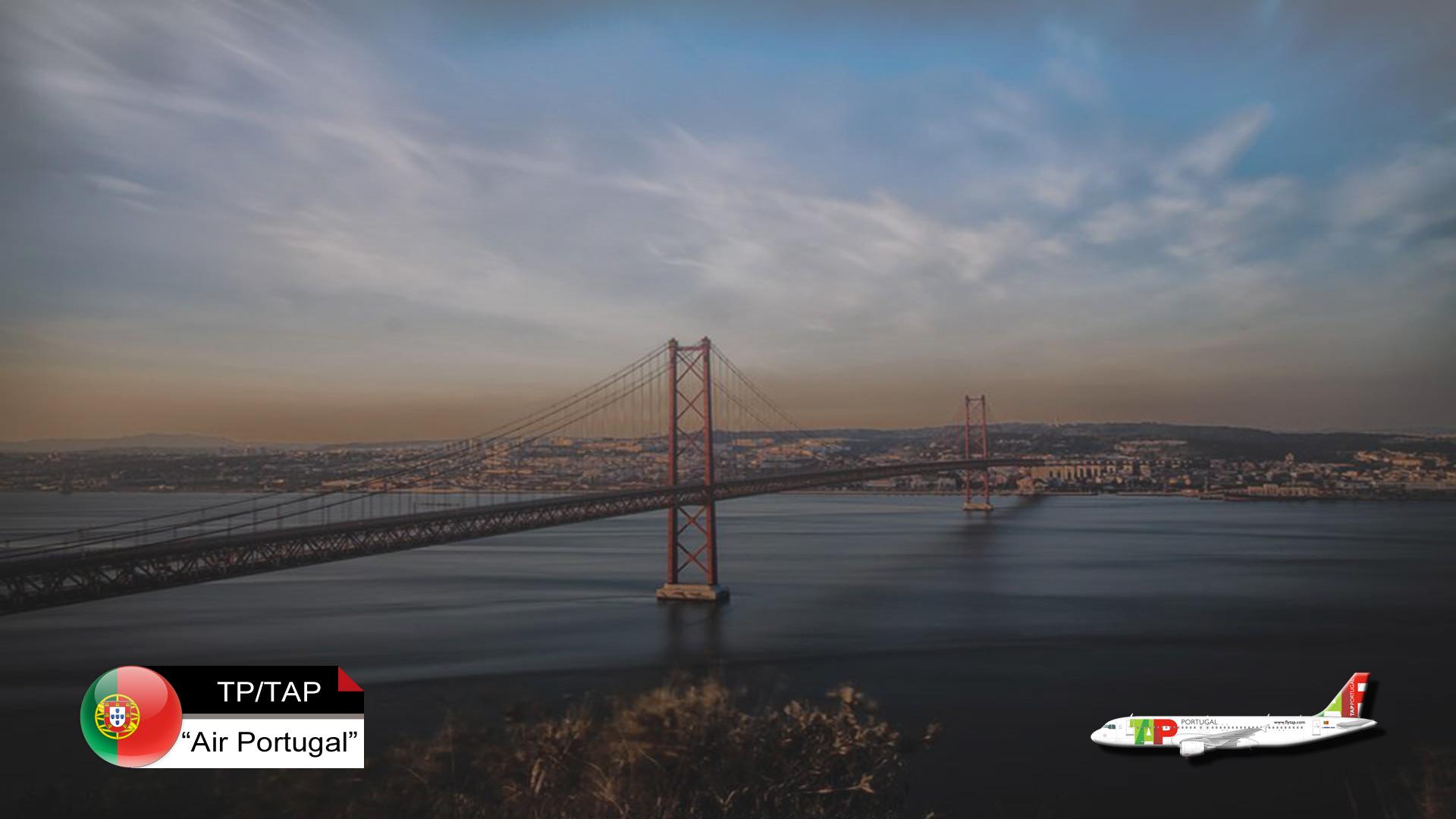
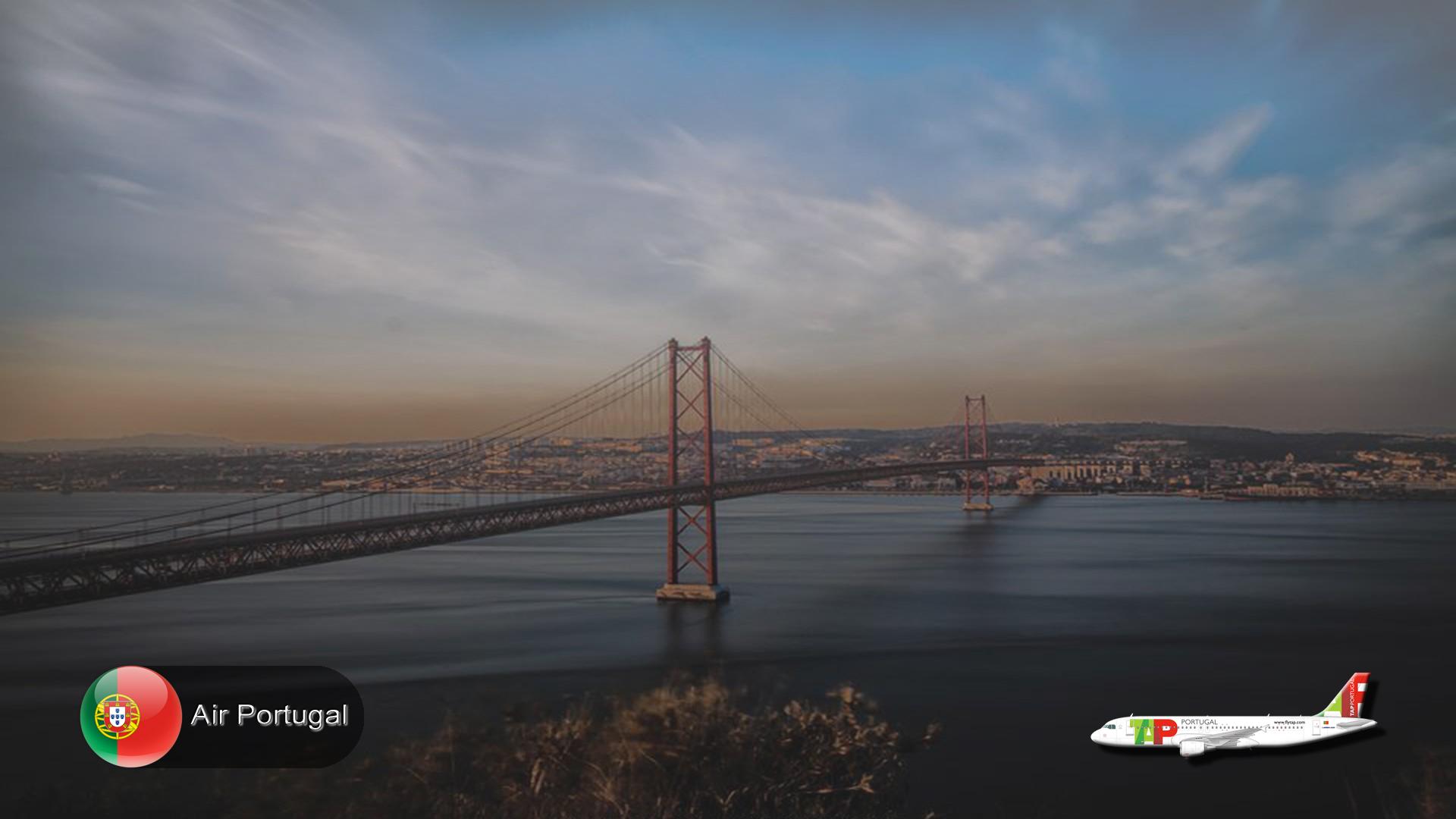
I usually fly with different companies so I downloaded and installed the Electronic Flight Bag (EFB) backgrounds for the airlines I frequently use. When I started using them, I found confusing to use different colours for different airlines. Specially the buttons get me a bit puzzled because I never seem to know if a button is “Unpressed”, “Pressed” or “In transit”. Being aware that this is not an issue for real world pilots who fly for a single company, I see it annoying for us, virtual pilots, so I decided to create a single, common colour scheme that could be used on every airline in a user-friendly manner. But (there is always a “but”) I also want to see which airline I am flying with a quick look at the EFB. I had to find balance and the result is what I am sharing with you today: a background image (background.jpg) with airline specific aircraft picture and, in some versions, airline logo together with a common colours definitions file (ipad.ini *) so the buttons always look and feel the same. There are background.jpg files for some (13) airlines already created and the Backgrounds.psd file will allow you to create your own ones if you so wish.
For installation just drop the folder “AAA” into the folder “FSLabs A320-SL\Airlines” and/or “FSLabs A321-SL\Airlines” as applicable.
Enjoy not having to carry the heavy, black suitcase anymore!
* Actually I have an Android tablet so this file name ☹.
PS: the resolution of the background file is 1920x1080, if you are fortunate enough to have a good 4K monitor … I feel happy for you and it should work quite ok anyway.
What's New in Version 1.0
Released
No changelog available for this version.
-
 1
1
-
 3
3
There are no reviews to display.