Skip to content
View in the app

A better way to browse. Learn more.

Flight Sim Labs Forums

A full-screen app on your home screen with push notifications, badges and more.

To install this app on iOS and iPadOS
  1. Tap the Share icon in Safari
  2. Scroll the menu and tap Add to Home Screen.
  3. Tap Add in the top-right corner.
To install this app on Android
  1. Tap the 3-dot menu (⋮) in the top-right corner of the browser.
  2. Tap Add to Home screen or Install app.
  3. Confirm by tapping Install.

REAL Lufthansa EFB wallpaper + color customizations + checklists 1.6

(4 reviews)

7 Screenshots

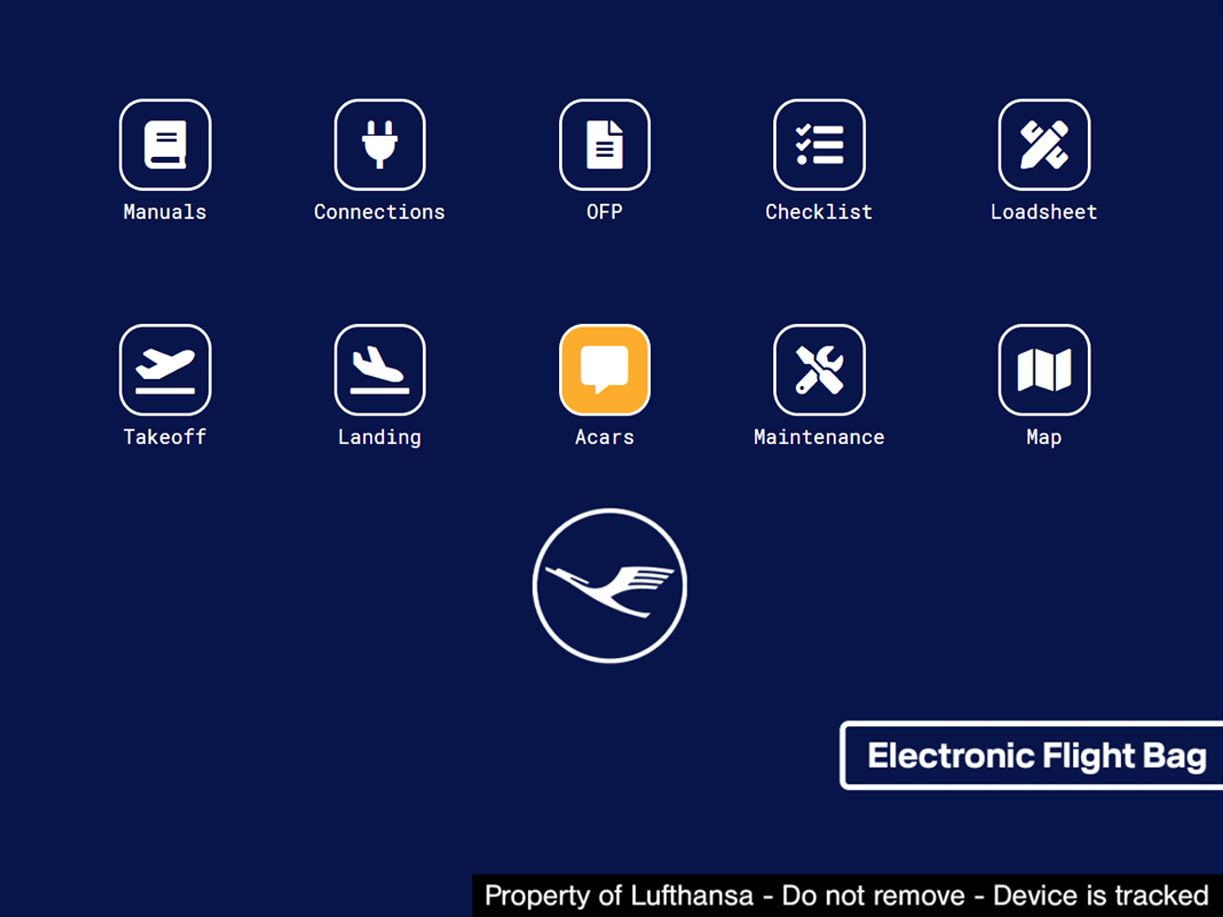
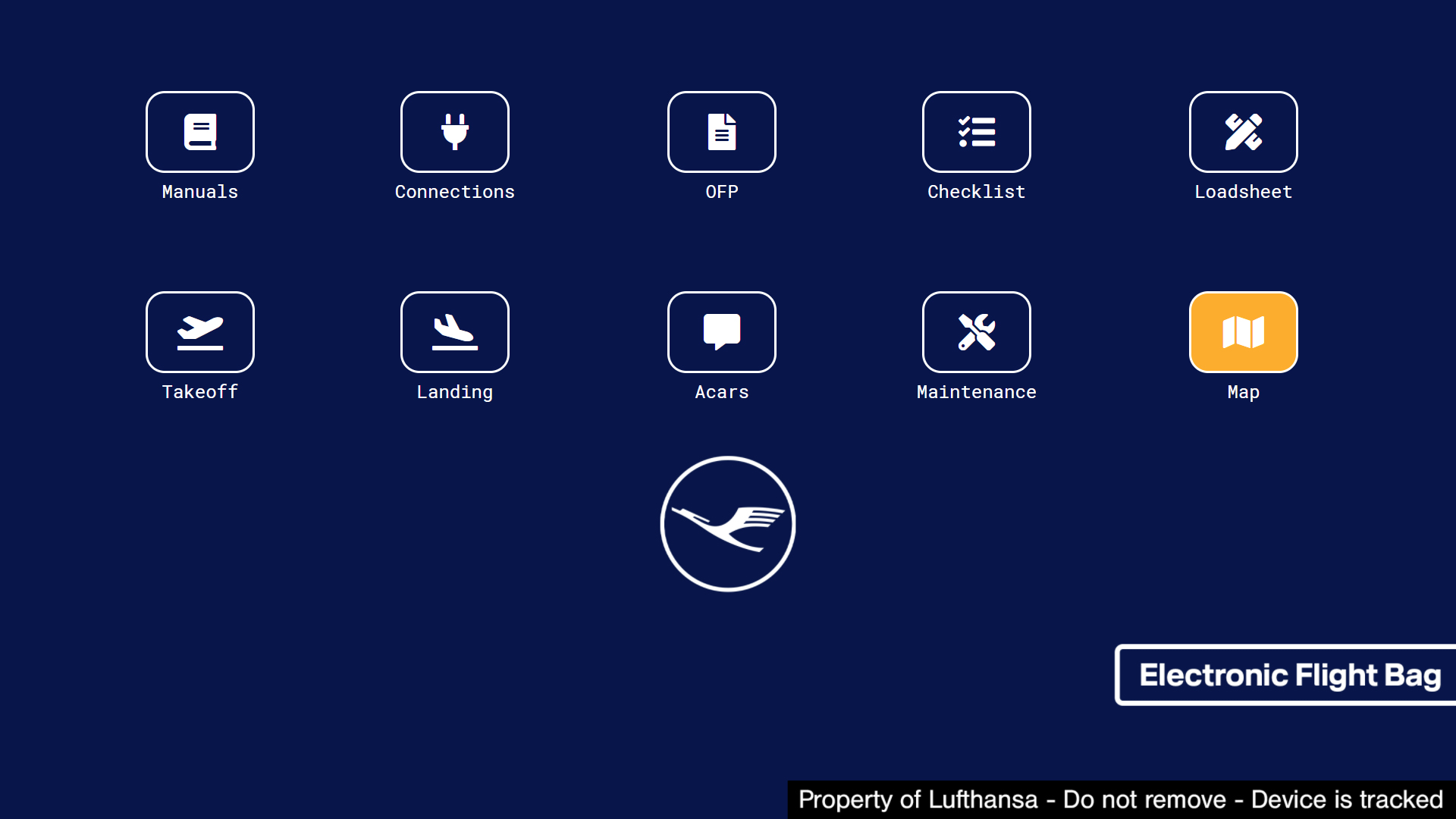
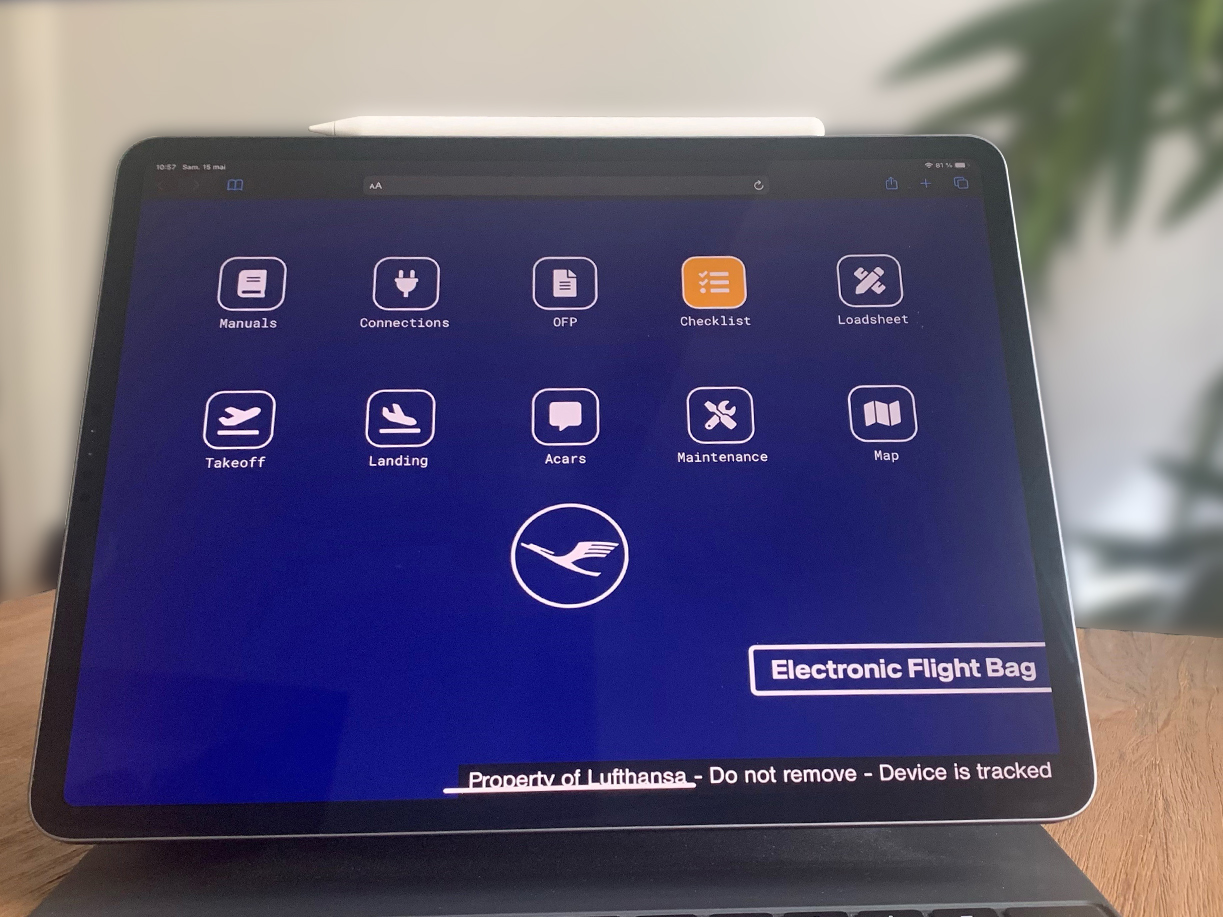
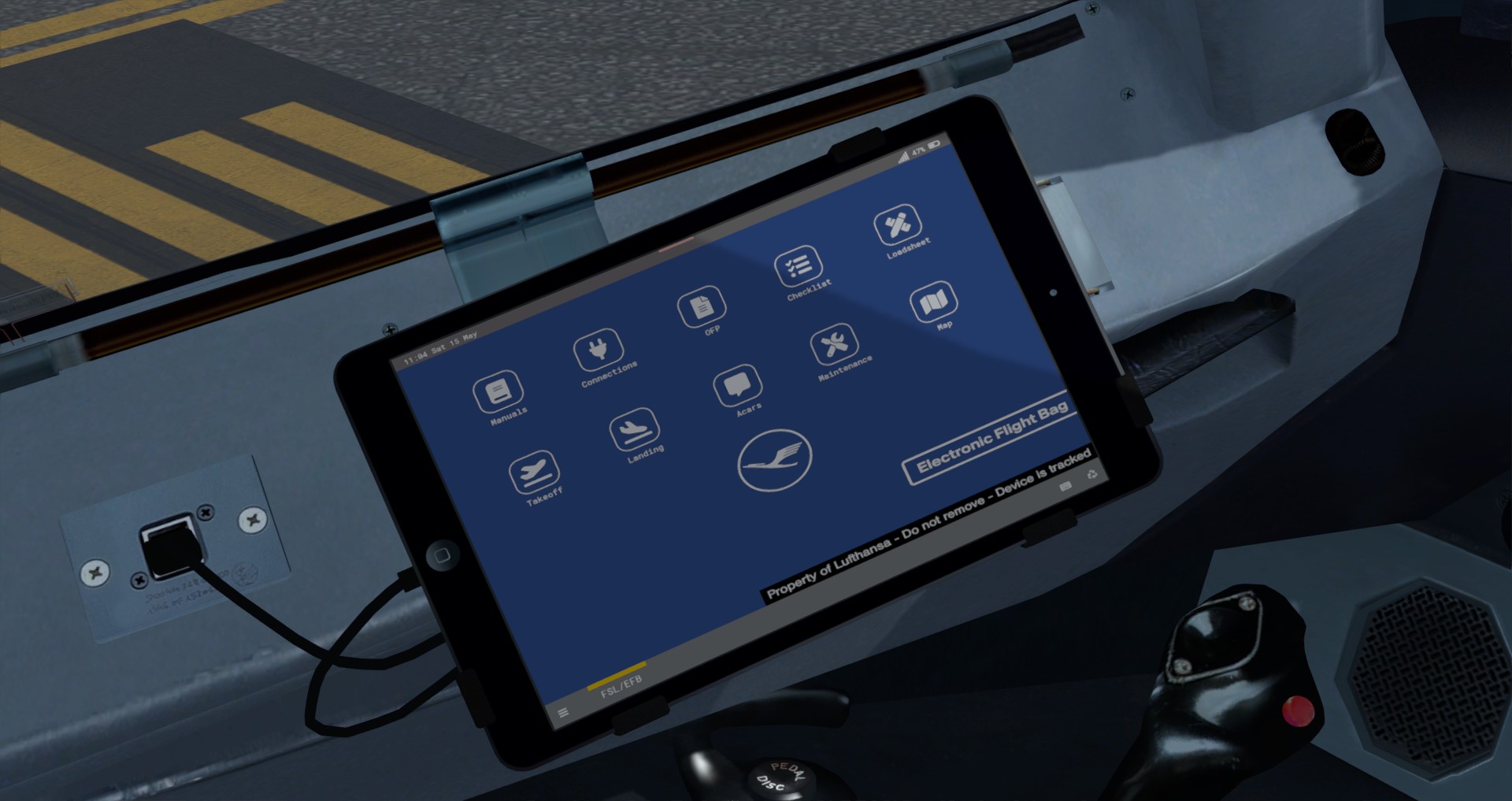
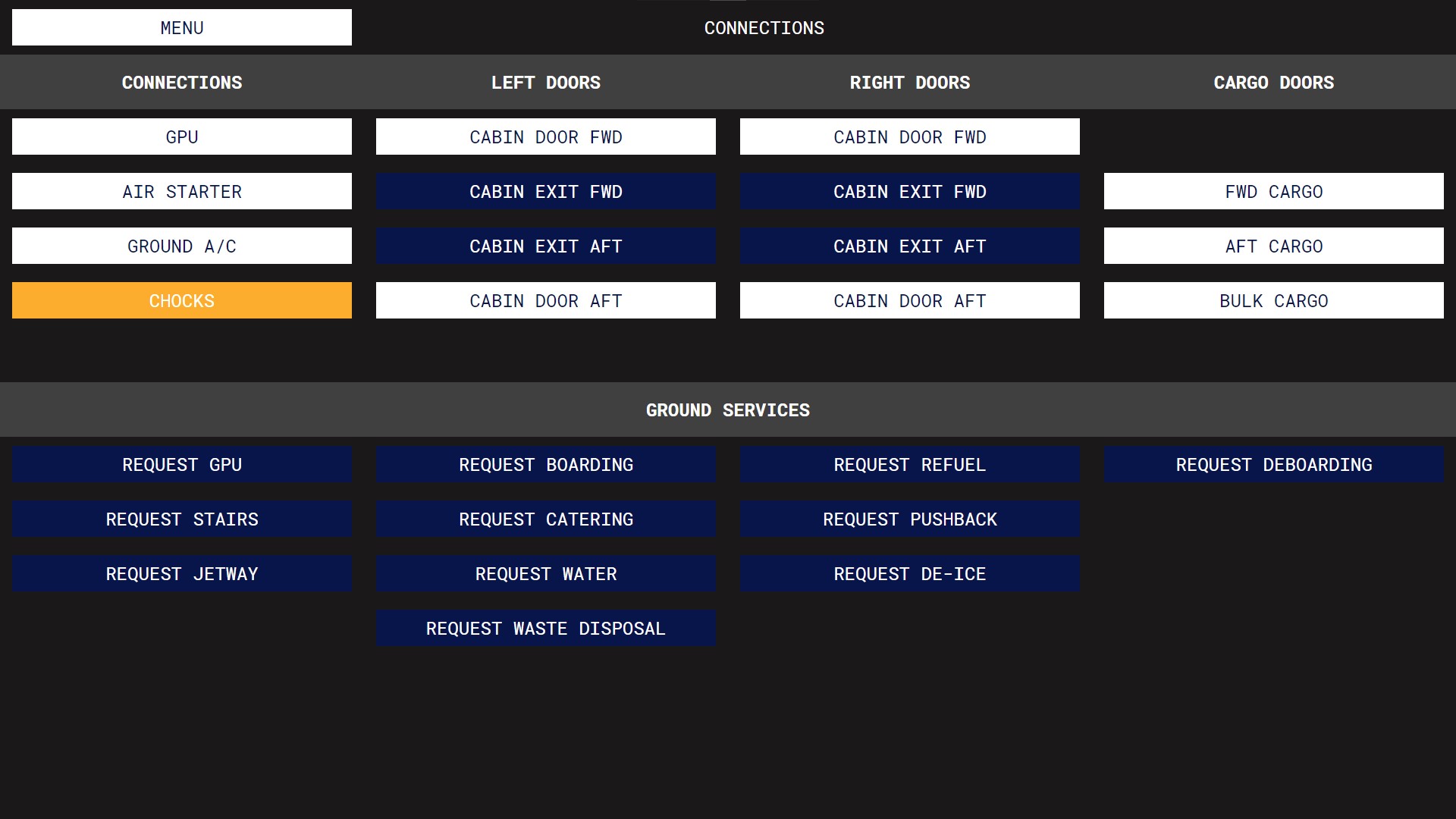
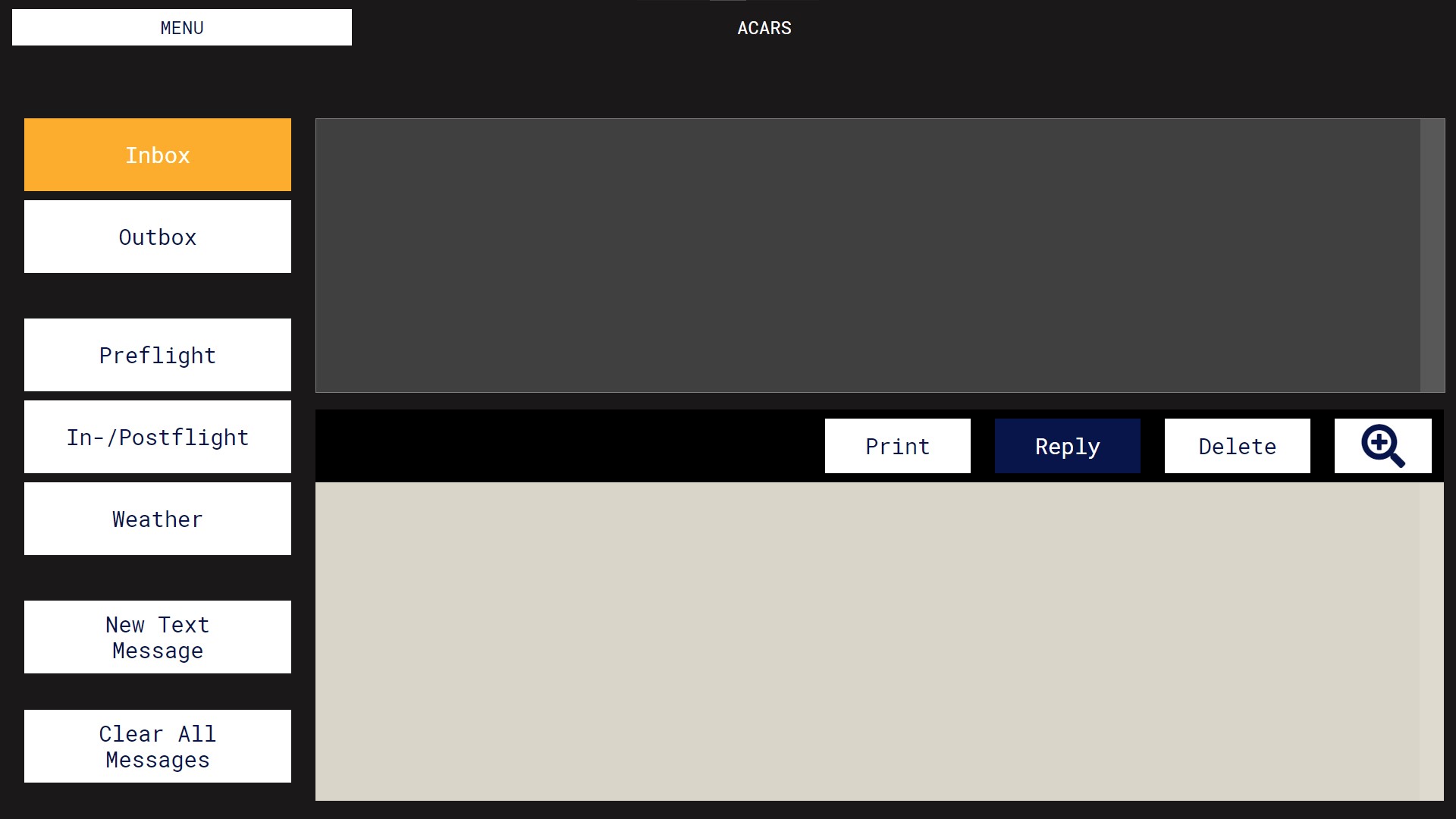
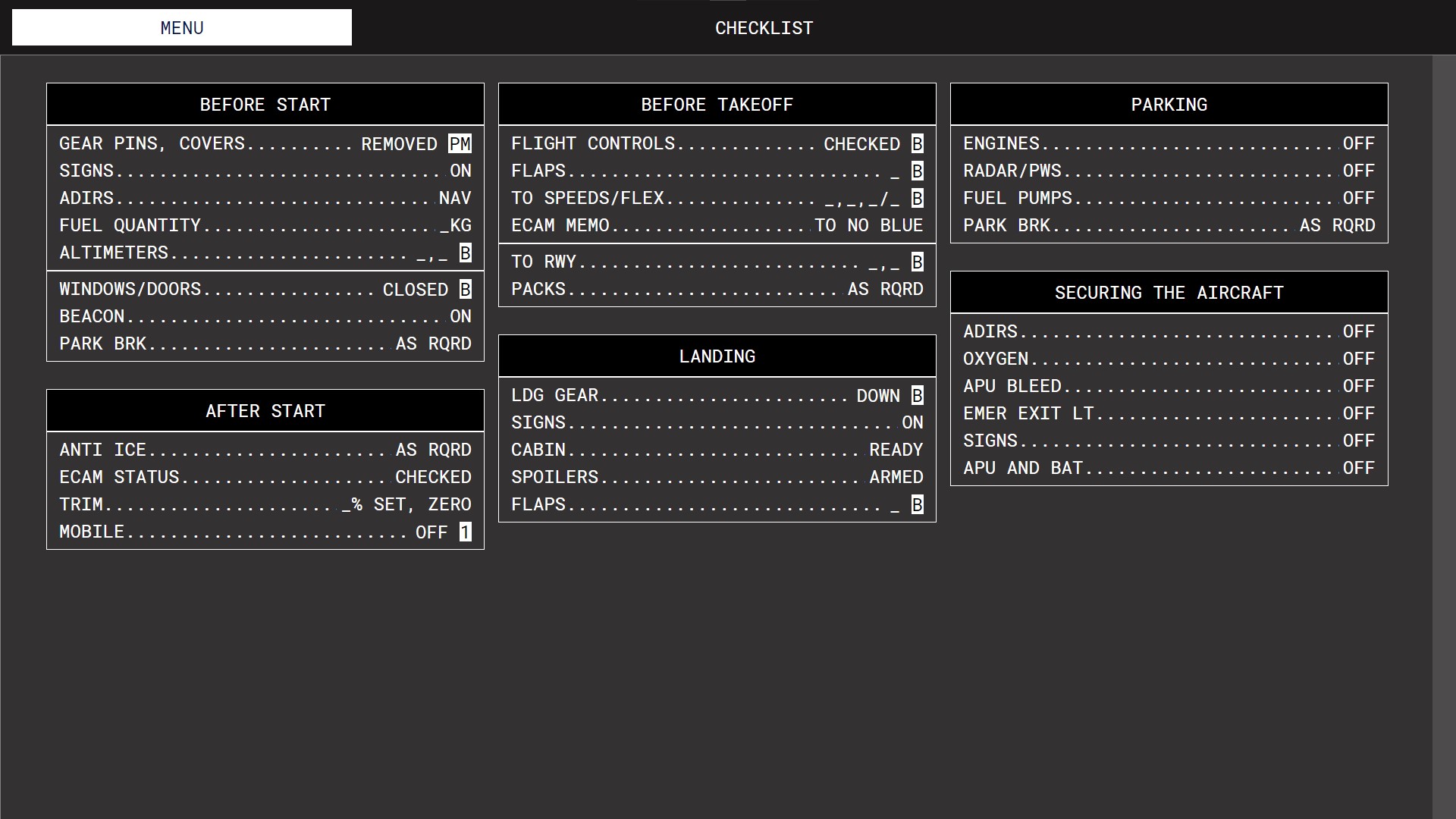
This is the real Lufthansa EFB wallpaper that can be found on Lufthansa's Microsoft Surface in the cockpit of A320 Family aircraft. The pack also includes color customizations on the home screen and in the entire EFB in the Lufthansa color scheme, as well as Lufthansa real checklists.


This pack is compatible with A319-WTF, A320-WTF, A320-SL, A321-WTF and A321-SL. However, you must have purchased the A320-SL or A321-SL to be able to use the EFB on A319-WTF, A320-WTF and A321-WTF.


They are two versions inside the download:

- 4:3 version (if you are using the remote EFB on a real iPad)

- 16:9 (if you are using the remote EFB on a computer)

Choose the one you prefer ;)


A realistic Lufthansa Gate pack for the entire Lufthansa short/medium-haul network:

What's New in Version 1.3

Released

- 4:3 version (if you are using the EFB remote on a real iPad)

- 16:9 (if you are using the EFB remote on a computer)

User Feedback

Frank de Witt

Frank de Witt


Very nice! Thanks for the two aspect ratio versions and that little "Property of Lufthansa...." text/sticker is just the icing on the cake!

James Thorp

James Thorp

   1 of 1 member found this review helpful 1 / 1 member

Wunderschön! 

Sebastian Brabsche

Sebastian Brabsche


Nice, Thank you

Alexander Polcher

Alexander Polcher


Thank you, I was looking for something similar!

Great job.

Response from the author:

Thank you very much! Great if you like it!

Account

Navigation

Search

Search

Configure browser push notifications

Chrome (Android)
  1. Tap the lock icon next to the address bar.
  2. Tap Permissions → Notifications.
  3. Adjust your preference.
Chrome (Desktop)
  1. Click the padlock icon in the address bar.
  2. Select Site settings.
  3. Find Notifications and adjust your preference.