

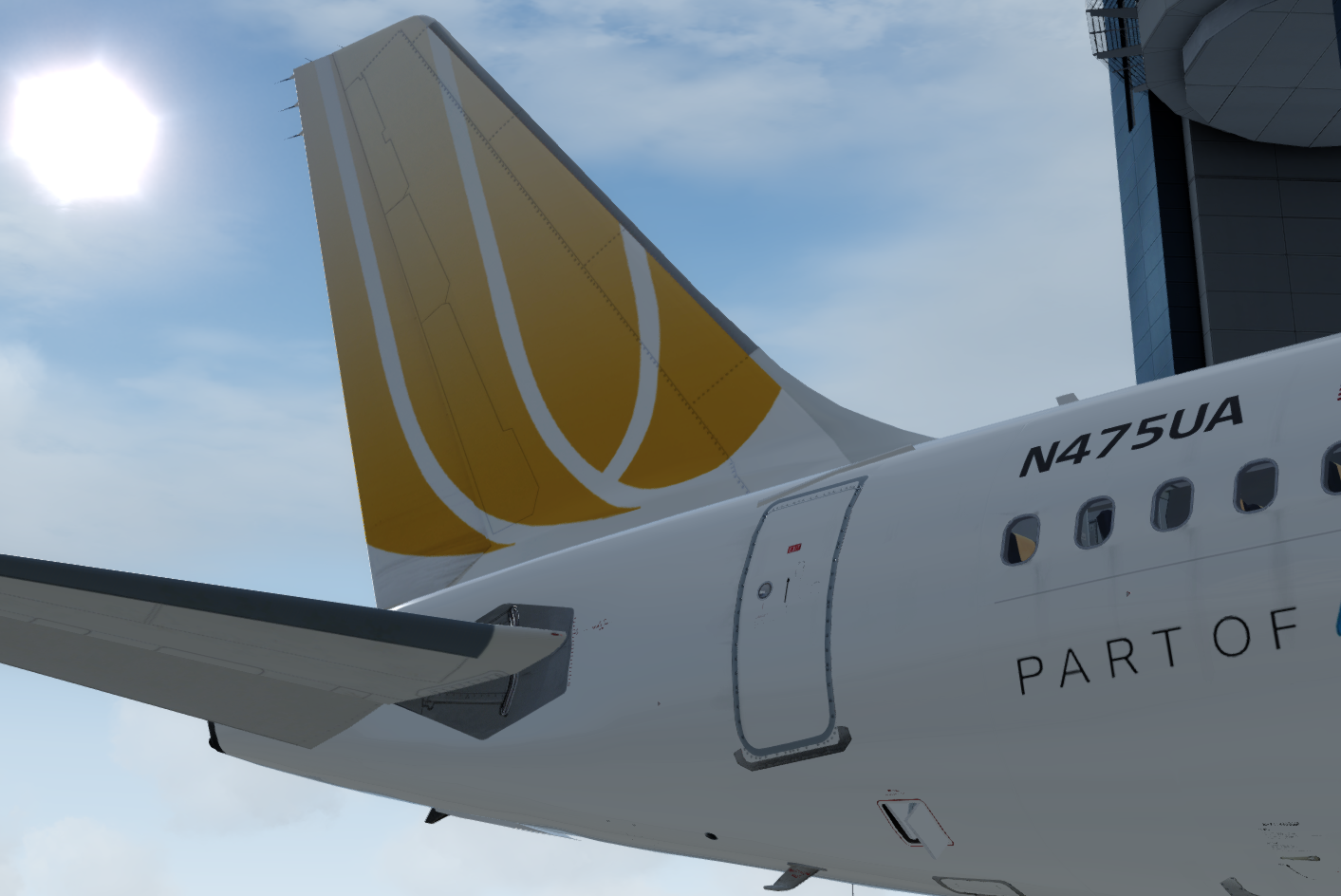
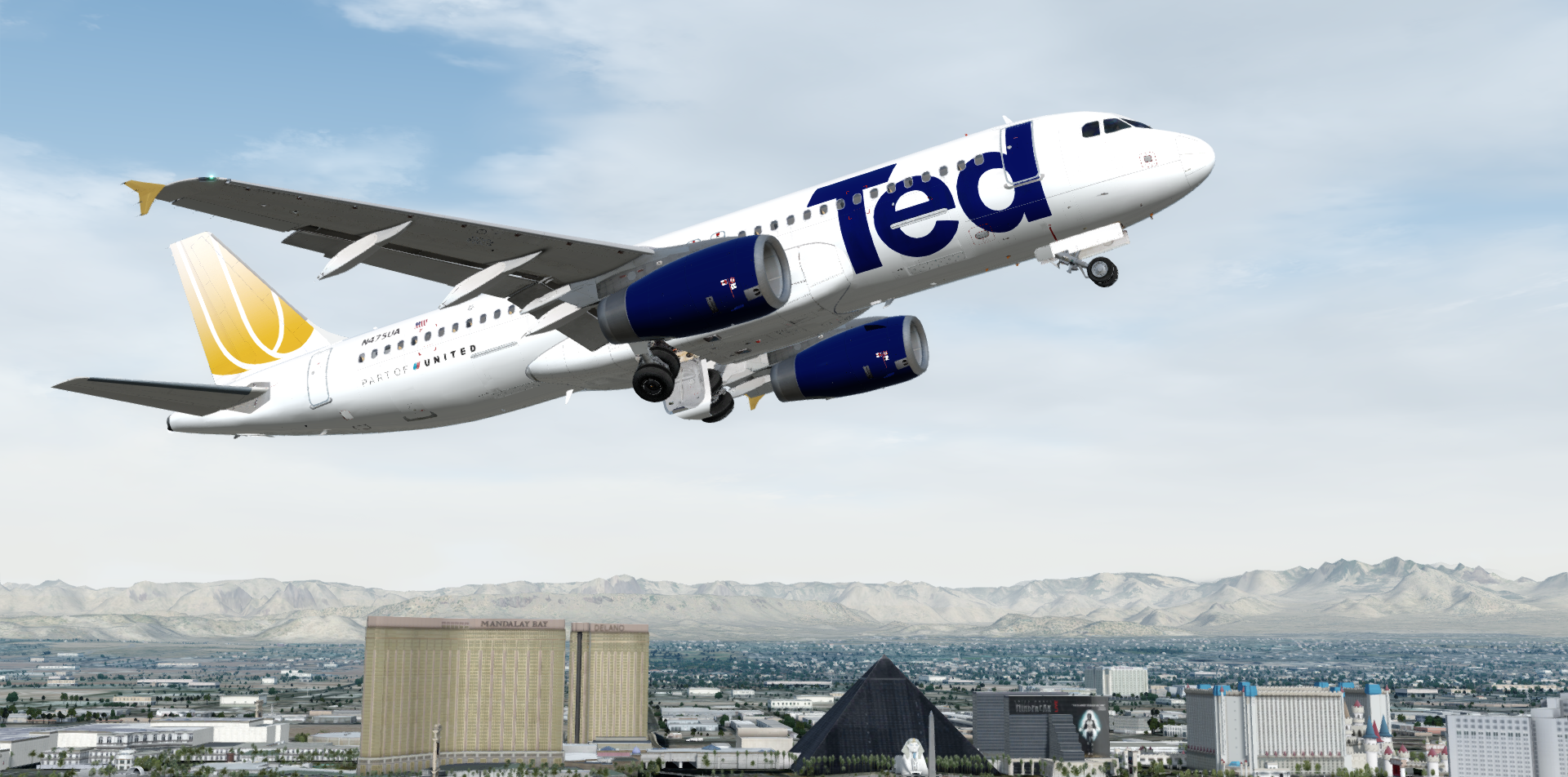
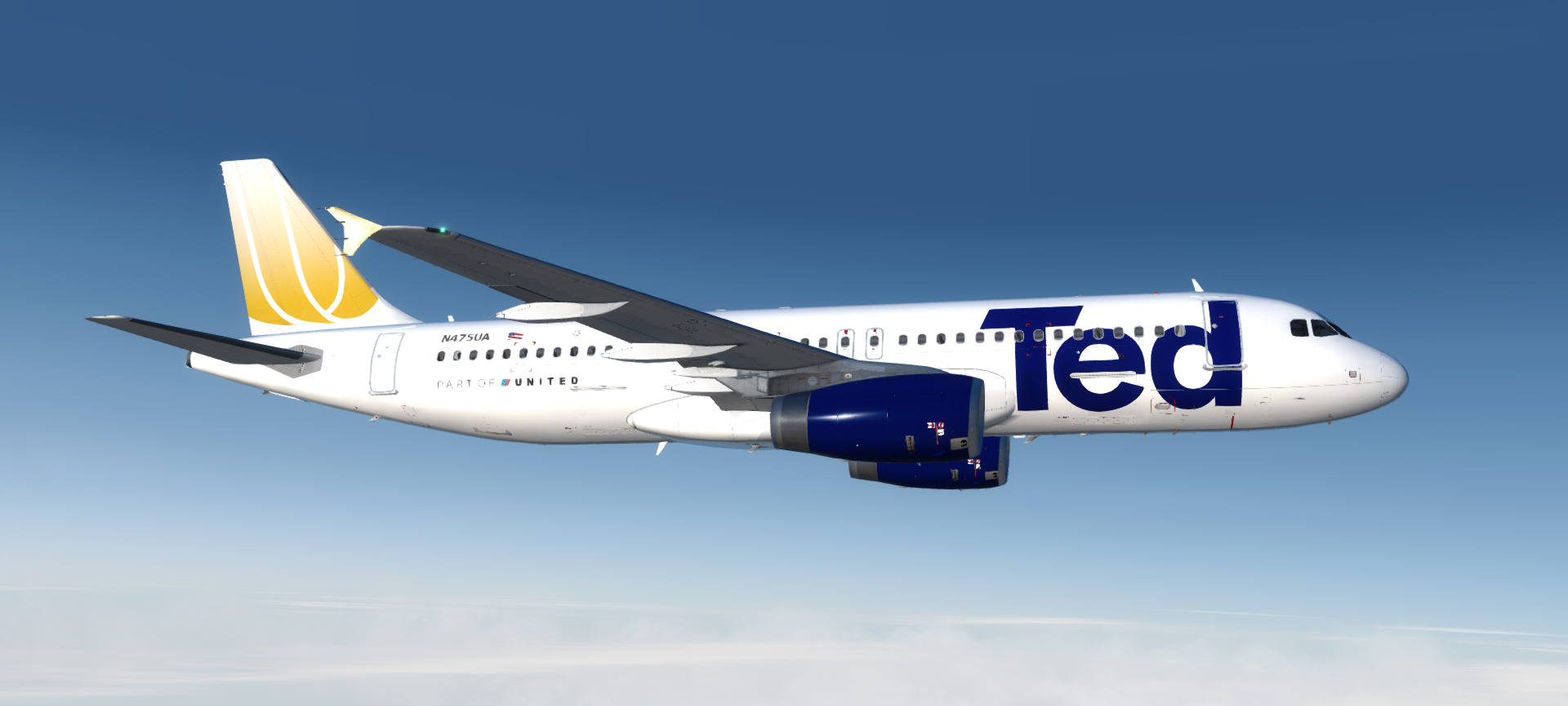
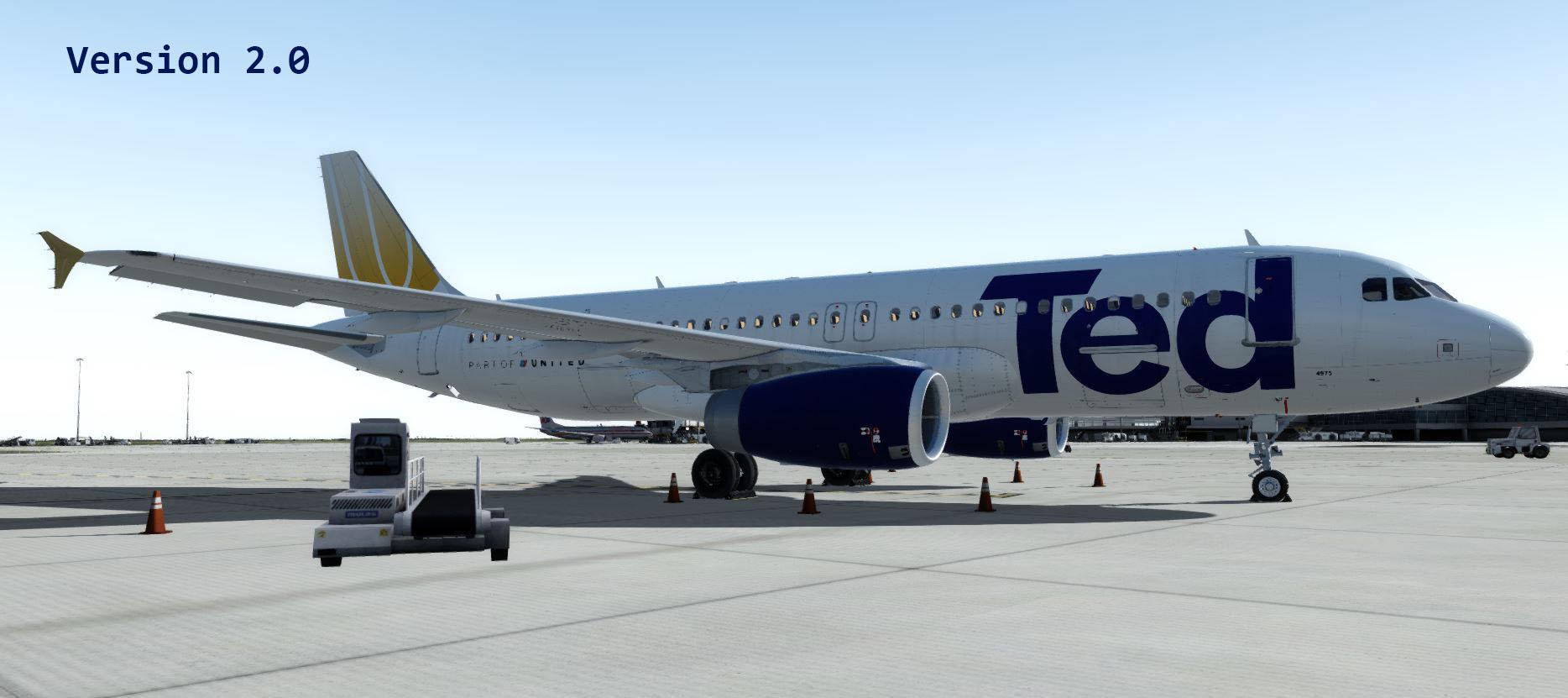
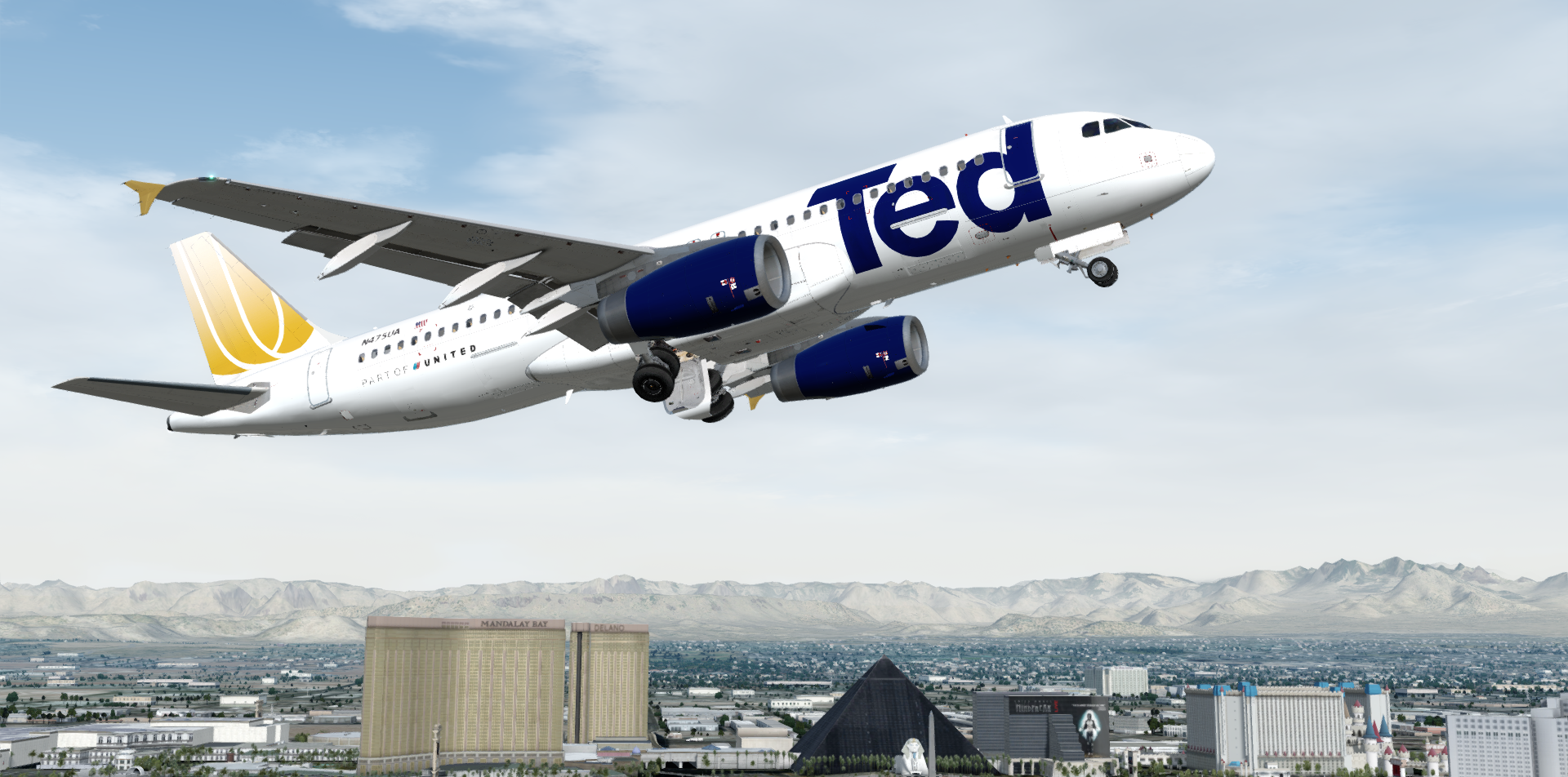
This is a livery for the A320x in the stunning United Airlines division "TED" which operated from 2003-2009. Tail number "N475UA" .
***THIS is my 1st P3D paint and 1st paint for the FSLabs Airbus Line also thanks to this FSLabs community for answering questions i had about the file saving process in P3D. Please let me know if i have forgotten anything or if you are having problems with the livery in your sim.***
Installation: Drop the file "Texture.TED" inside of the the zip file you downloaded into your \FSLabs\SimObjects\Airplanes\FSLabs A320 IAE folder.
Features Include:
- Custom hand crafted Livery that was painted to match real world aircraft as close as possible.
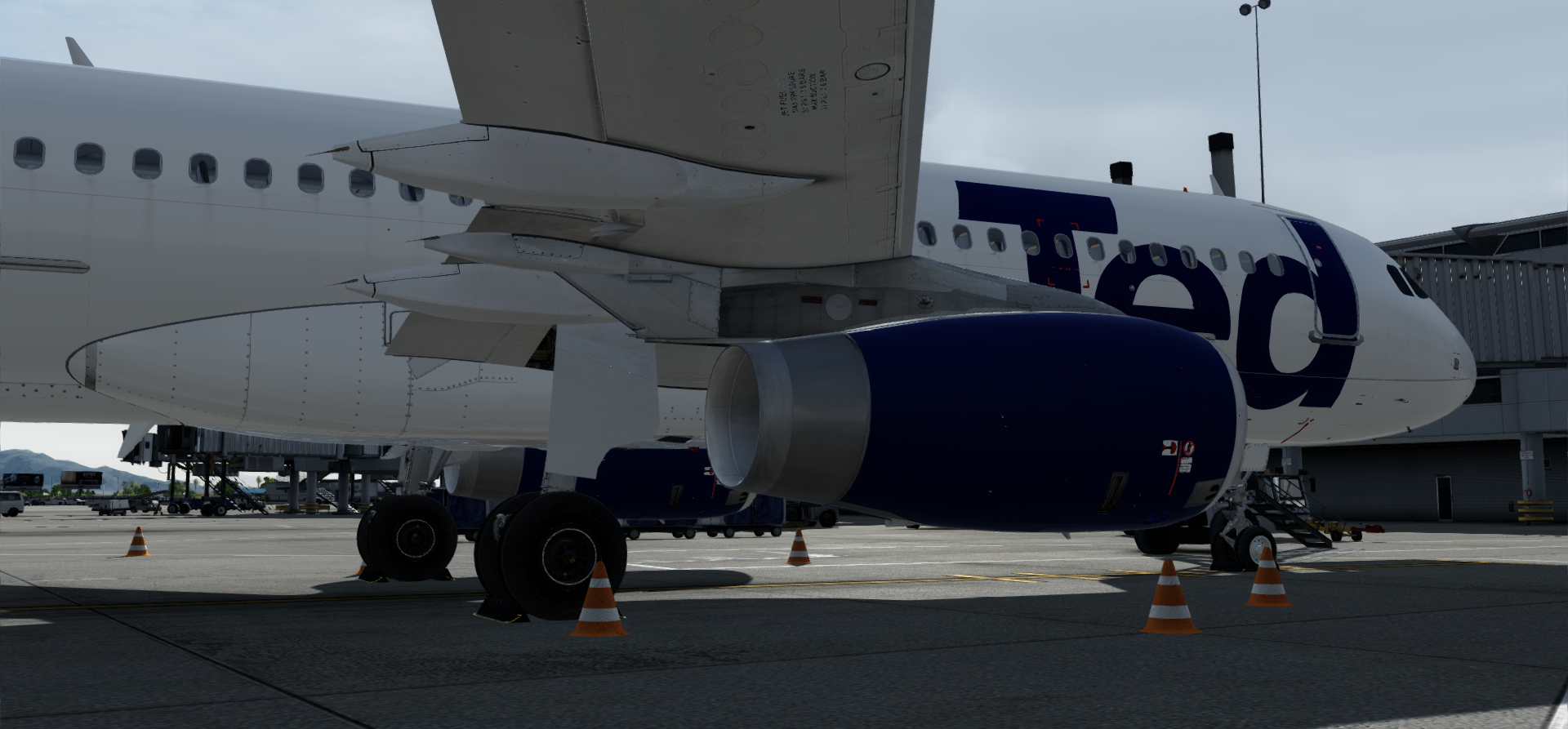
- Custom Colored landing Gear
- Painted Static wicks
- WING DIRT overlay from Jonas Dahlke Wing Dirt Files
_____________________________________________________________________________
I really had a lot fun making this one and I hope you all enjoy flying it as much as i did making it! *IF you like my work and want to buy me beer feel free to donate here: paypal.me/Mach3Legend
ENJOY and as always Happy Flying! 
What's New in Version 1.4
Released
Update 1.4
- Made Engine Fan Blades more visible
Update 1.3
- Added customized Binders in cockpit to match livery
Update 1.2
- Added customized and recolored Engine Parts
Update 1.1
- Fixed right side Flag
- Removed "Cut Here" Lines from Fuselage
- Customized "Open Here" emergency exit signs
-
 3
3
-
 1
1