
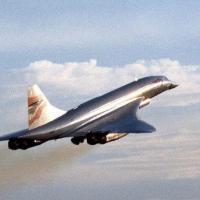
"Concorde (Manufacturer’s Serial Number) 210 [G-BOAD] was the only BA Concorde to have been painted in another Livery; it had a Singapore Airlines livery on one side as Singapore Airlines operated a joint service with BA in 1979."
Here's G-BOAD repainted in her short-lived 1979 dual BA/Singapore colors. I've always been fascinated with this livery and this route - the first true 'ultra-long-haul' supersonic scheduled flight, in my opinion. Seeing @Ed Byrom had already uploaded a BA/SG repaint, I eagerly downloaded it; yet, I noticed a few issues on the livery, mostly concerning some of the colors and lettering used. With his permission, I've made some modifications to the livery so that it's more accurate to how G-BOAD was actually painted. The main changes are:
- Fixing the lettering/font on the Singapore Airlines side to match the actual font used in the repaint (vs the modern SG font)
- Fixing the colors of the stripes/tail on the Singapore Airlines side to better match real photographs
- Redoing the lettering on the BA side to say 'British airways' instead of simply 'British'
All relevant lightmaps have been updated as well to reflect the changes.
Once more, full credit to @Ed Byrom for his efforts and fantastic original livery - I owe this entirely to him and his work.
Enjoy!


What's New in Version 2
Released
- Corrected reg fonts & minor styling tweaks