
Skip to content
View in the app

A better way to browse. Learn more.

Flight Sim Labs Forums

A full-screen app on your home screen with push notifications, badges and more.

To install this app on iOS and iPadOS
  1. Tap the Share icon in Safari
  2. Scroll the menu and tap Add to Home Screen.
  3. Tap Add in the top-right corner.
To install this app on Android
  1. Tap the 3-dot menu (⋮) in the top-right corner of the browser.
  2. Tap Add to Home screen or Install app.
  3. Confirm by tapping Install.

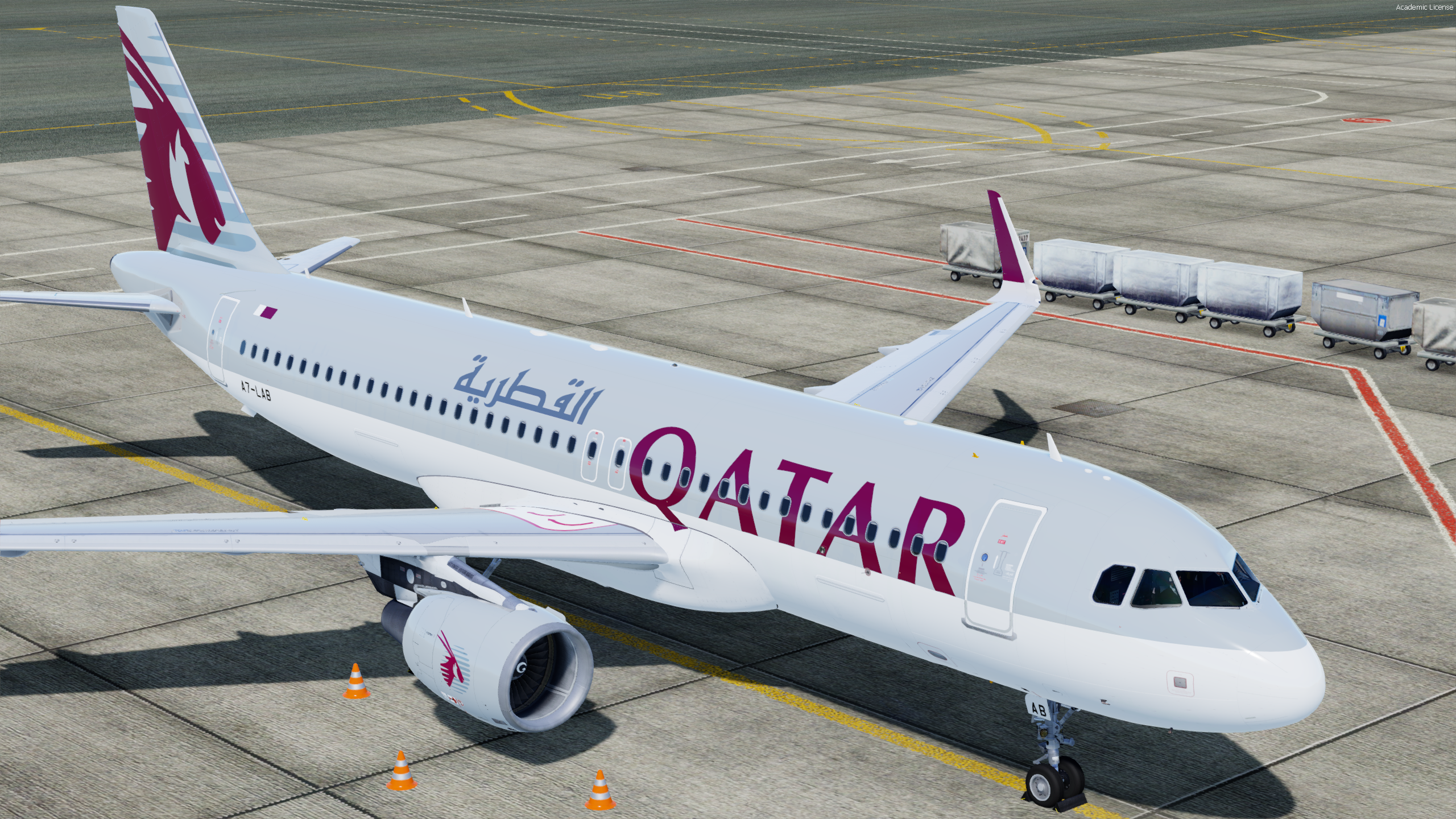
Qatar Airways A320-SL CFM A7-LAB 1.0.0

(1 review)

4 Screenshots

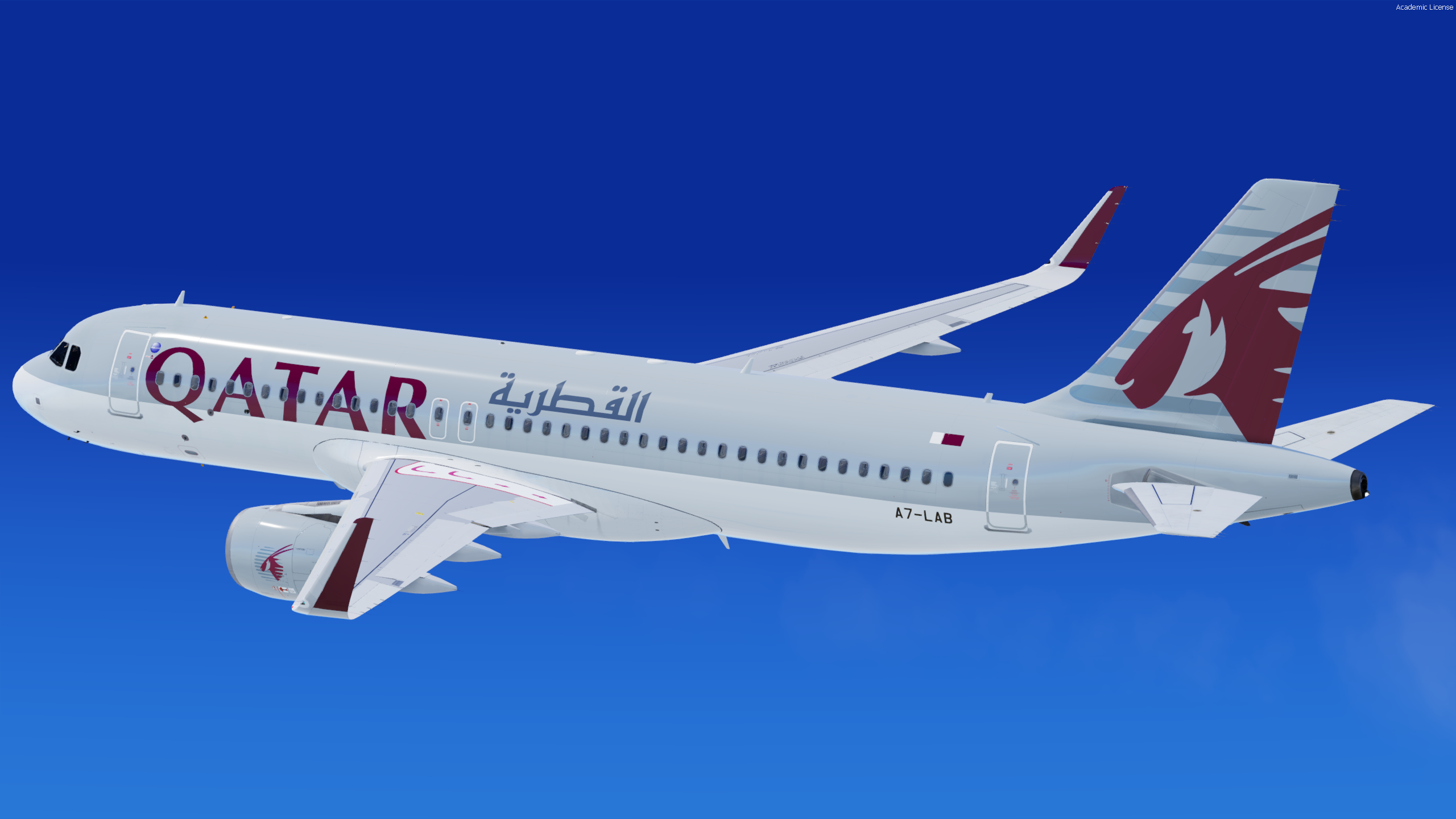
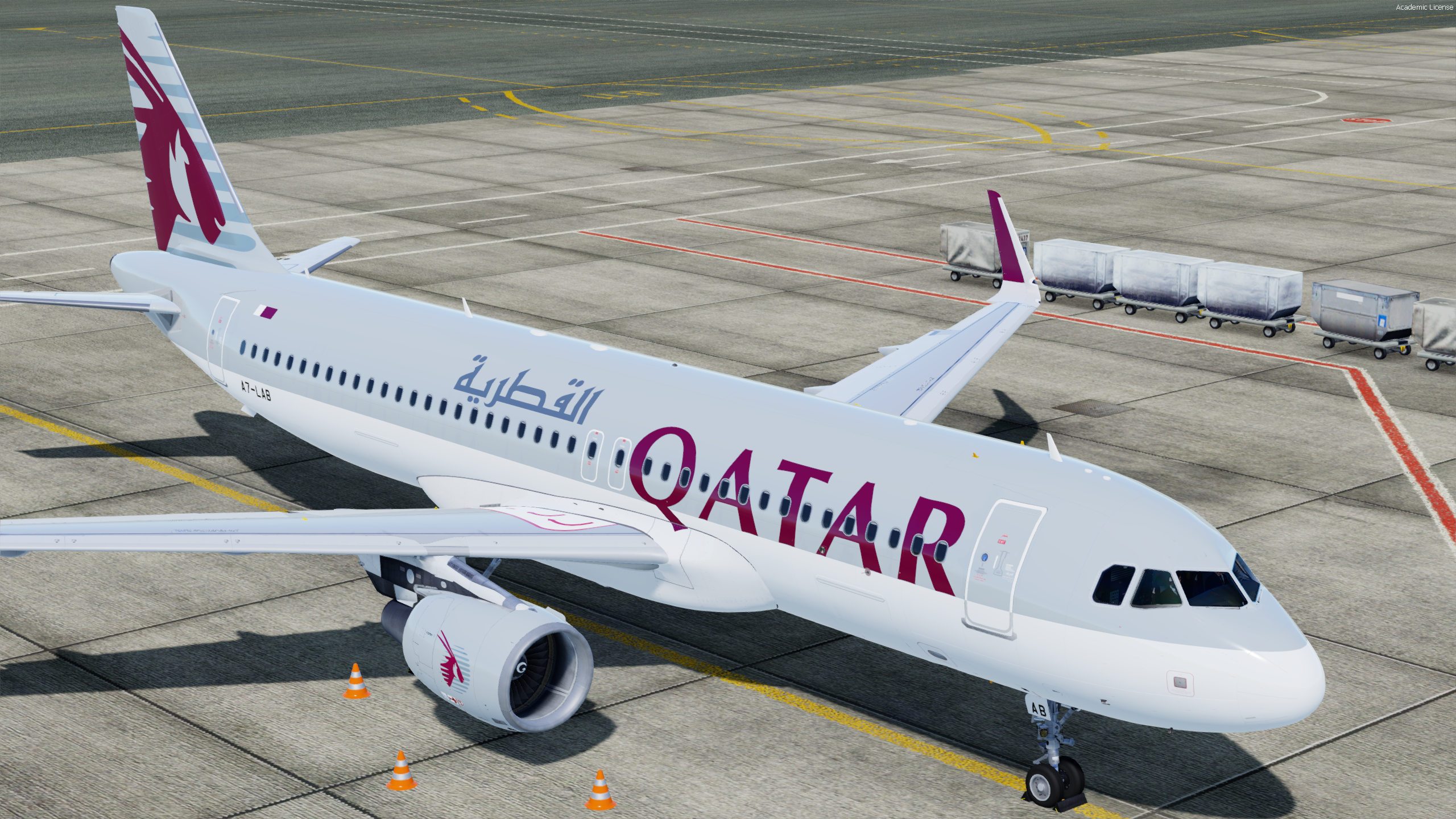
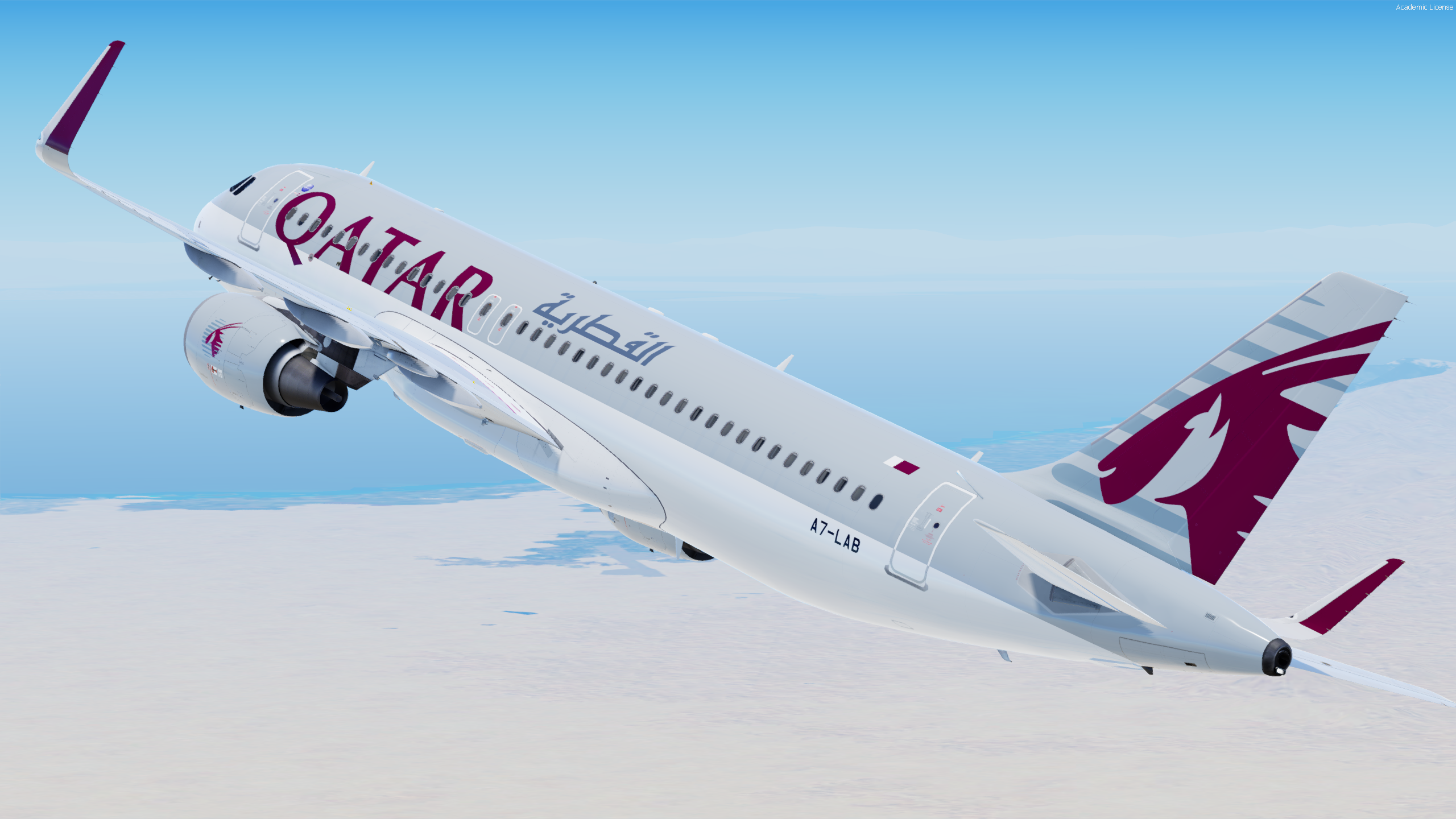
Qatar Airways A320-SL CFM A7-LAB

***ONLY FOR A320-SL v5.0.100+***

IMPORTANT: This Repaint REQUIRES the following files to be installed to appear as intended:

https://forums.flightsimlabs.com/index.php?/files/file/2460-common-files-for-fsl-a320-v501100-custom-4k-pbr-paint-kit/

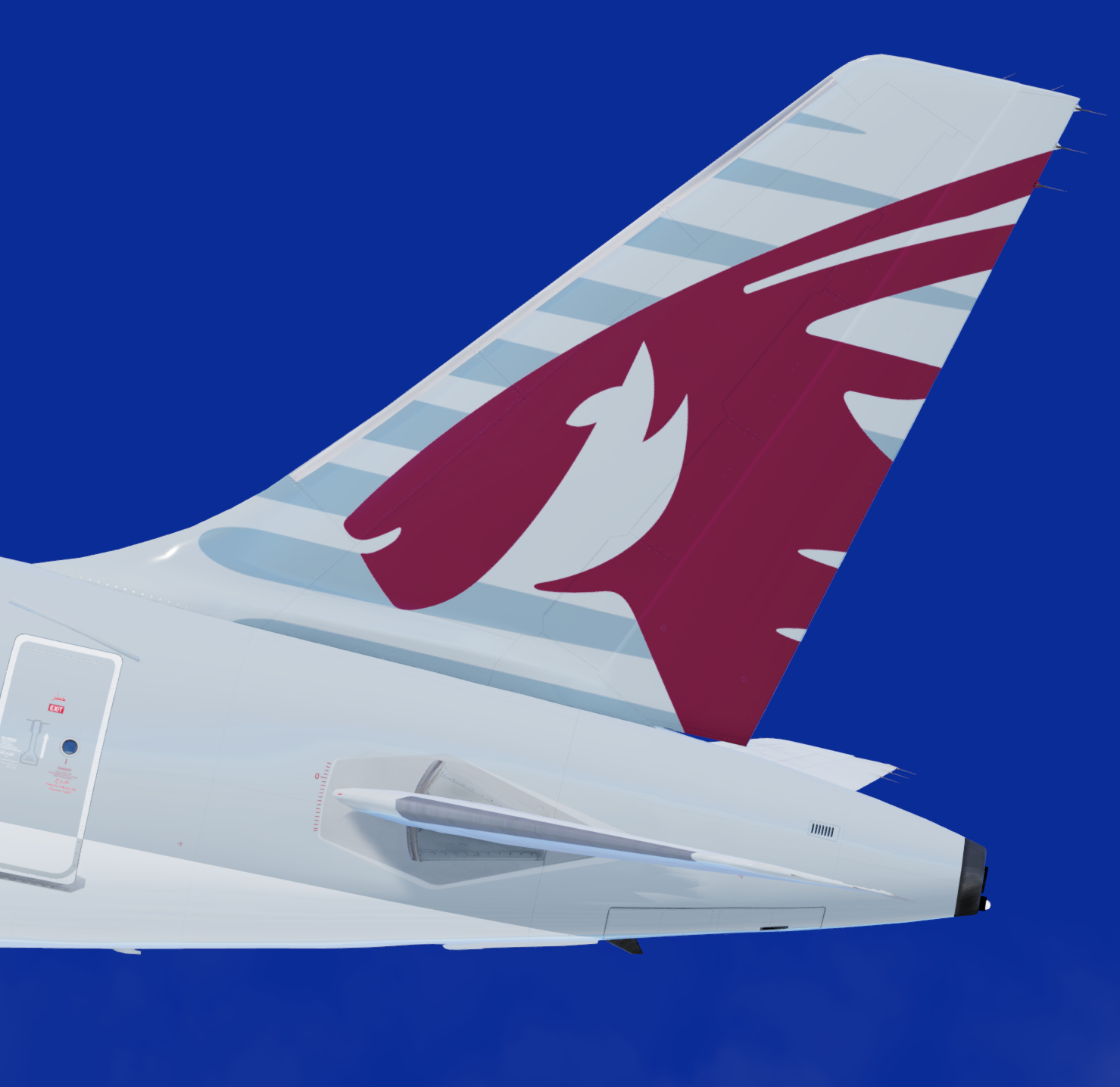
Fully accurate rendition of the real aircraft including custom translated decals, dirt textures and other weathering

Features a complete overhaul of the default FSL A320 paint kit including:

  • Custom 4K textures with accurate seam panelling, fuselage section joins and rivets
  • Custom 4K metallic maps (PBR) with baked ambient occlusion (AO) effects
  • Custom 4K normal maps for fuselage, engines, wings and tail
  • Reworked landing gear including tyres and struts with custom PBR effects
  • Enhancements to aircraft overlay textures, including PBR effects
  • Custom dirt effects

Simply drag and drop into your "FSLabs A320-SL CFM" folder

Enjoy!

Massive thanks to the FSL team for using this livery in the Sharklet announcement post!

Many thanks to @Hugo Bicho, @Daniel Du Preez and @John Tavendale for access to the custom paint kit.

Check out their work by clicking on the tags above!
A7LAB1.thumb.png.b2af2ca1721248567af31a29c63badbf.png

User Feedback

David Norfolk

David Norfolk


Stunning

Account

Navigation

Search

Search

Configure browser push notifications

Chrome (Android)
  1. Tap the lock icon next to the address bar.
  2. Tap Permissions → Notifications.
  3. Adjust your preference.
Chrome (Desktop)
  1. Click the padlock icon in the address bar.
  2. Select Site settings.
  3. Find Notifications and adjust your preference.